|
<< Click to Display Table of Contents >> Editing a Text Dataset |
  
|
|
<< Click to Display Table of Contents >> Editing a Text Dataset |
|
There are several ways to edit the text data, either:
•click on the text data column on the log
•double click on the text data object on the sidebar
•select Edit > Text Data Name
•or select Popup > Text Data Name
The menu item that will appear in the Edit, Popup, and sidebar will have the name of the column specified in the template for the log. For example, if the template specified the name of the column as "Remarks", the menu items will also be named "Remarks".This is used to distinguish between different text data columns within the same template.
After this the Text Data form will be displayed. This form has either two or three tabs; one for the text data, one for memo data, and one for line data. If the dataset being specified is comprised only of numbers then the memo tab will not be shown; for example, Rock Hardness.
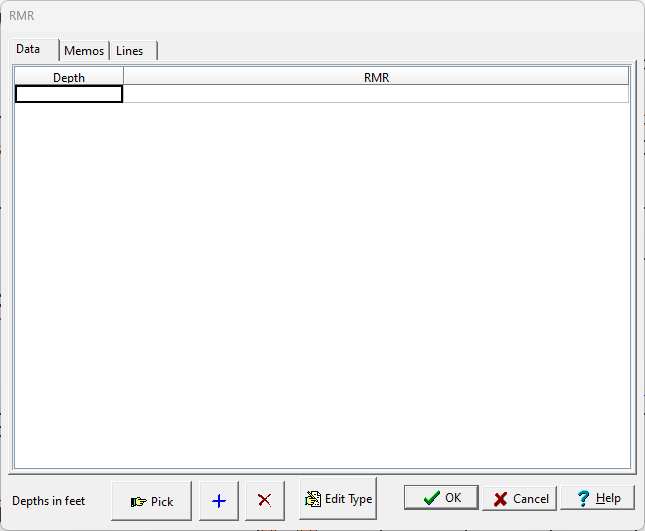
At the bottom of the form there are buttons to Pick, Add and Delete a depth. When the Pick button is pressed you can specify the depth on the log by holding down the left mouse button and then moving the mouse to the desired depth and releasing the button. While the mouse is being moved a red line will be shown across the log at the currently selected depth.
The name of the text dataset can be changed by clicking on the Edit Type button at the bottom of the Text tab. A new unique name can then be entered in the Edit Type form shown. Changing the name of the dataset will affect whether the dataset is displayed in the log. For the dataset to be displayed the template must contain a text data column with the same name.