|
<< Click to Display Table of Contents >> Custom List Interval Text Data |
  
|
|
<< Click to Display Table of Contents >> Custom List Interval Text Data |
|
Custom list interval text data is used to display text selected from a custom list at specified depth intervals similar to text interval data. There are several ways to edit the data, either:
•click on the data column on the log
•double click on the data object on the sidebar
•select Edit > Text Interval Data > Custom List Data Name
The menu item that will appear in the Edit and sidebar will have the name of the column specified in the template for the log. For example, if the template specified the name of the column as "Penetration Rate", the menu items will also be named "Penetration Rate".This is used to distinguish between different data columns within the same template.
After this the Custom List Data form will be displayed.
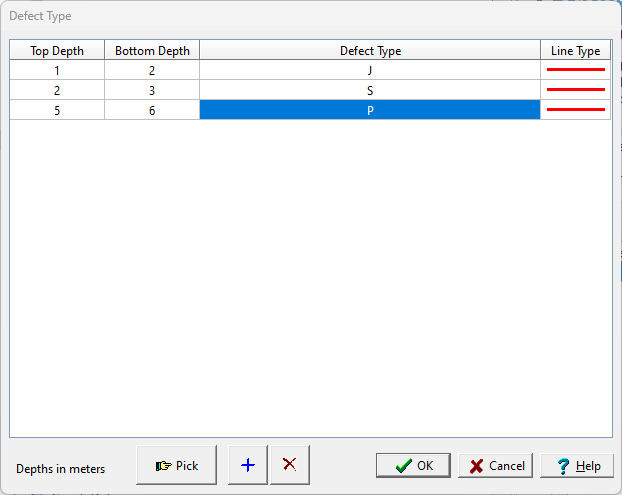
(The appearance of the form will differ slightly depending on if it is WinLoG or WinLoG RT)
The following information can be edited on this form:
Top Depth: This is the top depth of the text interval.
Bottom Depth: This is the bottom depth of the text interval.
Text: This is the text to display in the text interval. The name of this column will be the name of the data column in the template. When this column is selected a drop down list showing the symbols and description in the custom list is displayed. The text can be selected from this list.
Line Type: This is the line style to be used for the top and bottom boundaries of the text interval. When the line is clicked on the Line Properties form is displayed. This form is used to set the line style, thickness, and color. The line style can be set to none to display no line at the boundary
At the bottom of this form there are buttons to Pick, Add and Delete text intervals.When the Pick button is pressed you can specify the bottom depth of the interval by clicking on the location on the log.