|
<< Click to Display Table of Contents >> Sending a boring/well to PDF |
  
|
|
<< Click to Display Table of Contents >> Sending a boring/well to PDF |
|
Boring/Wells can either be sent to a PDF file individually or multiple logs can be sent to one or more PDF files within a project.
Individual Log

To send the log to a PDF file while is is opened:
•select File > Send to PDF
•click the PDF button on the toolbar
After this the Send to PDF form below will be displayed.
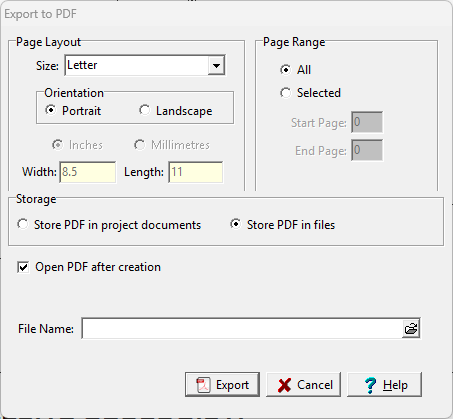
(The appearance of the form will differ slightly depending on if it is WinLoG or WinLoG RT)
The following can be entered on this form:
Size: This is the page size for the PDF file, it can be selected from the list. Both metric and Imperial page sizes can be selected as well as a custom page size specified. If it is a continuous log the page size will be adjusted to accommodate the entire log in one file.
Orientation: The long axis of the page can either be oriented vertically (Portrait) or horizontally (Landscape).
Inches or Millimeters: For custom page sizes this is used to select the page units. When standard page sizes are selected the units are selected automatically.
Width: This is the width of the page.
Height: This is the height of the page.
Page Range: Select either all of the pages or specify a start and end page to send to the PDF.
Storage: The PDF file can either be stored as a project document or in a file.
Open PDF after creation: If this is checked the PDF file will be opened after it has been created.
File Name: If the PDF is being stored as a file, this is used to specify the name of the PDF file. The name and directory can be browsed to using the button on the right.
Multiple Logs
To send multiple logs within a project to a PDF, the project must be displayed and no log can be opened. Then select File > Print > Send Logs to PDF and the Select Logs form below will be displayed.
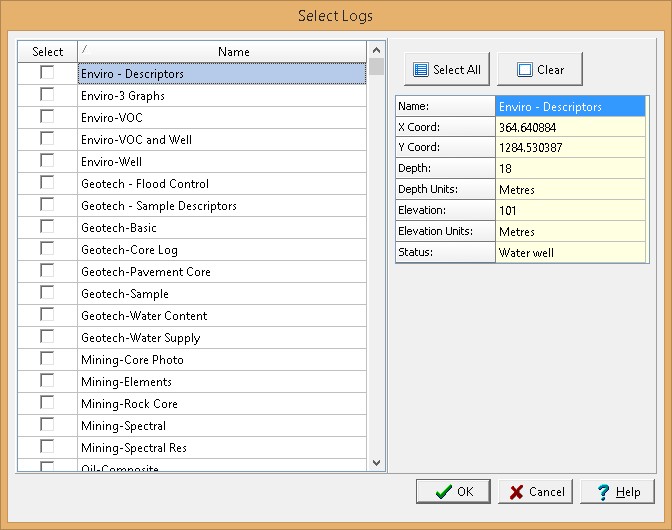
On this form the logs can be selected by checking the box beside them or all of the logs can be selected by clicking on the Select All button. To unselect all of the logs click the Clear button. When a log is clicked on in the list the information for the log will be displayed on the right.
After the logs have been selected the Send to PDF form below will be displayed.
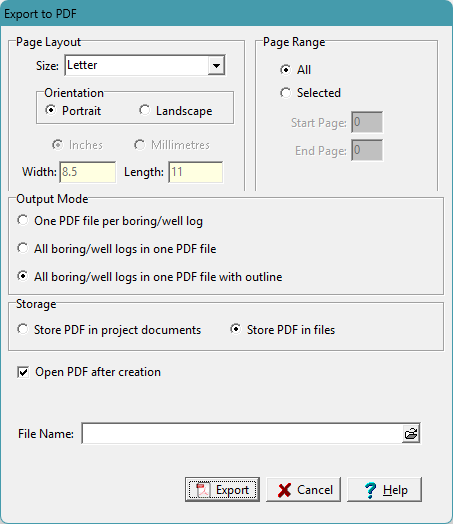
The following can be entered on this form:
Size: This is the page size for the PDF file, it can be selected from the list. Both metric and Imperial page sizes can be selected as well as a custom page size specified.
Orientation: The long axis of the page can either be oriented vertically (Portrait) or horizontally (Landscape).
Inches or Millimeters: For custom page sizes this is used to select the page units. When standard page sizes are selected the units are selected automatically.
Width: This is the width of the page.
Height: This is the height of the page.
Page Range: Select either all of the pages or specify a start and end page to send to the PDF.
Output Mode: There are three ways that the logs can be sent to a PDF. One PDF file can be created for each log, all of the logs can be send to one file, or all of the logs can be sent to one file and an outline created for each log. The outline is similar to a table of contents entry.
Storage: The PDF(s) can either be stored as a project document or in one or more files.
Open PDF after creation: If this is checked the PDF file will be opened after it has been created. This field is only shown when the last two options for Output Mode are selected.
File Name: If the PDF(s) are being stored in one file, this is used to specify the name of the PDF file. This field is only shown when the last two options for Output Mode are selected. The name and directory can be browsed to using the button on the right.
Directory: If the PDF(s) are being stored in files, this is the directory where the PDF files for each individual log will be saved. This field is only shown if the first option for Output Mode is selected. The directory can be browsed to using the button on the right.
Prefix: If the PDF(s) are being stored in files, this is the prefix to be used for each individual PDF file. The file name for each log will be a combination of the prefix and log name. For example, if the boring log name is ``B105`` and the prefix is ``Project1_``, the file name would be ``Project1_B105.pdf``.
Name: If the PDF(s) are being stored in one project document, this is the name of the document..