|
<< Click to Display Table of Contents >> GaeaSynergy 4 Template List |
  
|
|
<< Click to Display Table of Contents >> GaeaSynergy 4 Template List |
|
When importing templates, no project can be open at the time. Multiple GaeaSynergy 4 templates can be imported by selecting File > Import > GaeaSynergy 4 Data > Templates. The Import wizard form below will then be displayed. This form will guide you through the steps of importing a list of templates.
Step 1. Select the Template Database File
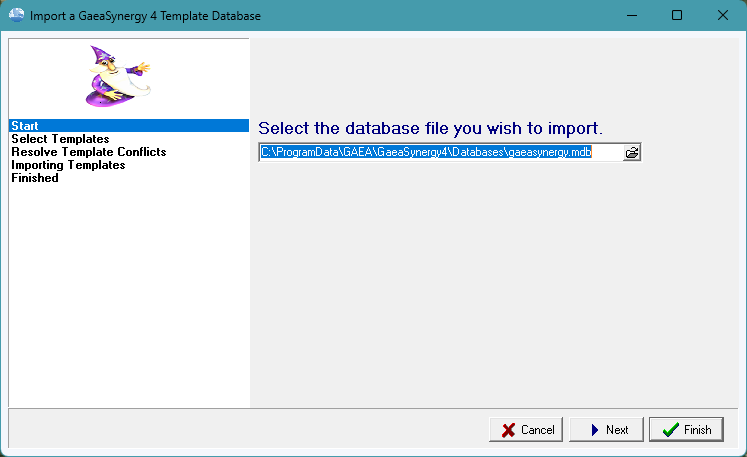
The first step is to select the GaeaSynergy 4 database containing the templates. This database is an Microsoft Access file named "gaeasynergy.mdb". If the GaeaSynergy 4 program was installed and used locally on the computer the file is normally stored in the "c:\Program Data\GAEA\GaeaSynergy4\Databases" directory. If the GaeaSynergy 4 database was used across a network, the file will be stored on a network drive. After the file has been selected, press the Next button to continue.
Step 2 Select Templates
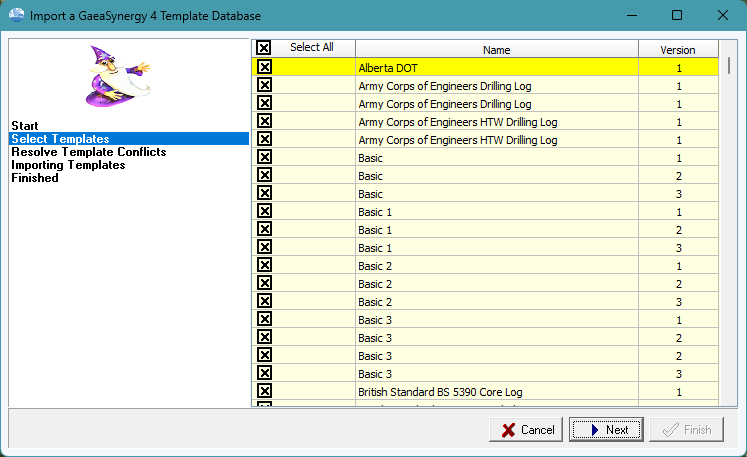
The next step is to select the templates to import. A list of templates will be displayed using the database specified in the previous step. Select the templates by clicking on the box next to the template name. All of the templates can be selected and deselected by clicking on the Select All box. After the templates have been selected click the Next button.
Step 3 Resolve Conflicts
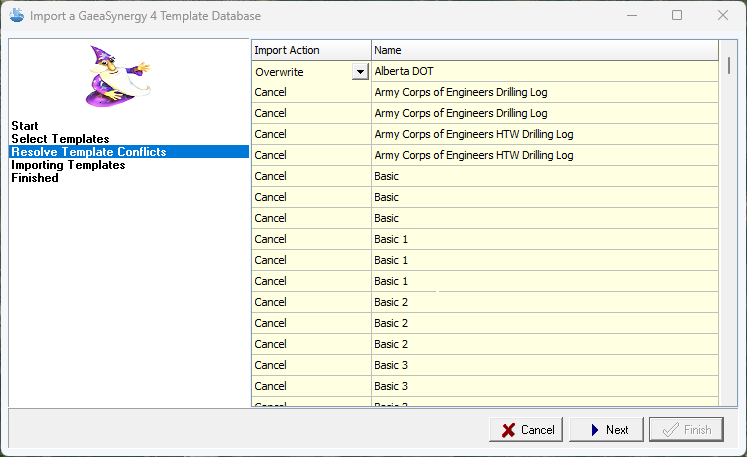
The next step is to resolve any conflicts with template names. This will happen when the name of an imported template is the same as the name of a template already in GaeaSynergy. These conflicts can be resolved either by overwriting the existing template or by not importing the template. After any conflicts have been resolved, click the Next button to continue.
After the templates have been imported they will be added to the template list.