|
<< Click to Display Table of Contents >> Creating a Default Template |
  
|
|
<< Click to Display Table of Contents >> Creating a Default Template |
|
Column Selection
If create a default template is selected the form below will be displayed. This form is used to select the columns to include in the template. The columns are determined by the data contained in the gINT project file that is being imported. Columns can be moved between the available list to those to be included in the template using the left and right arrow buttons, The order of the columns to be shown in the template can be adjusted using the up and down arrow buttons. Columns at the top of the template list will be displayed on the left side of the template and the ones at the bottom on the right side of the template.
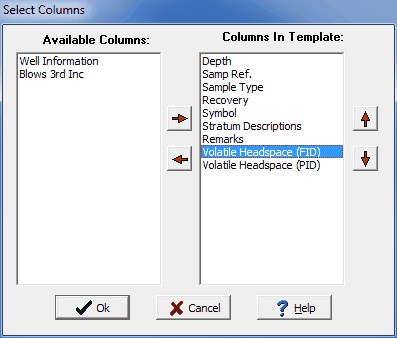
(The appearance of the form will differ slightly depending on if it is WinLoG or WinLoG RT)
After the columns have been selected, press the Ok button to display the form below. This form is used to specify the template name, data format, and page setup. When his information has been specified click the Ok button to finish importing the data.
Template Tab
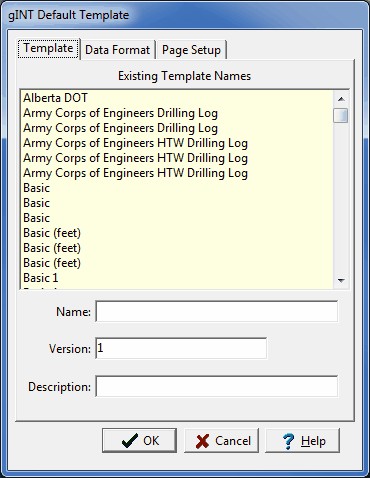
(The appearance of the form will differ slightly depending on if it is WinLoG or WinLoG RT)
The following can be specified on this tab:
Name: This is the unique name for the template.
Version: This is the version of the template.
Description: This is the description of the template.
Data Format Tab
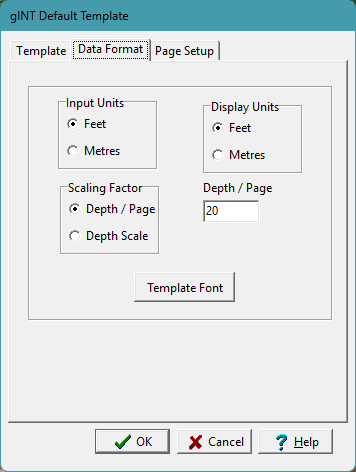
The following can be specified on this tab:
Input Units: This is units to use for data input for the template.
Display Units: This is the units to use for display in the template.
Scaling Factor: This is used to select the whether to use a depth per page or depth scale in the template.
Depth/Page: If the scaling factor is Depth/Page, this is tehe depth per page to use in the template.
Depth Scale: If the scaling factor is Depth Scale, this is the depth scale for the template.
Template Font: Click this button to select the font to use for the template.
Page Setup Tab
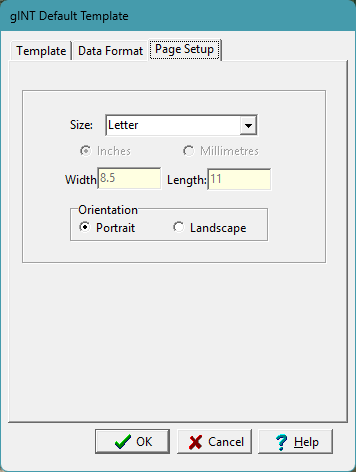
The following can be specified on this tab:
Size: This is used to select the page size. If the page size is custom, the units, width and length can be specified.
Orientation: This is used to select the page orientation.