|
<< Click to Display Table of Contents >> Step 4 Columns |
  
|
|
<< Click to Display Table of Contents >> Step 4 Columns |
|
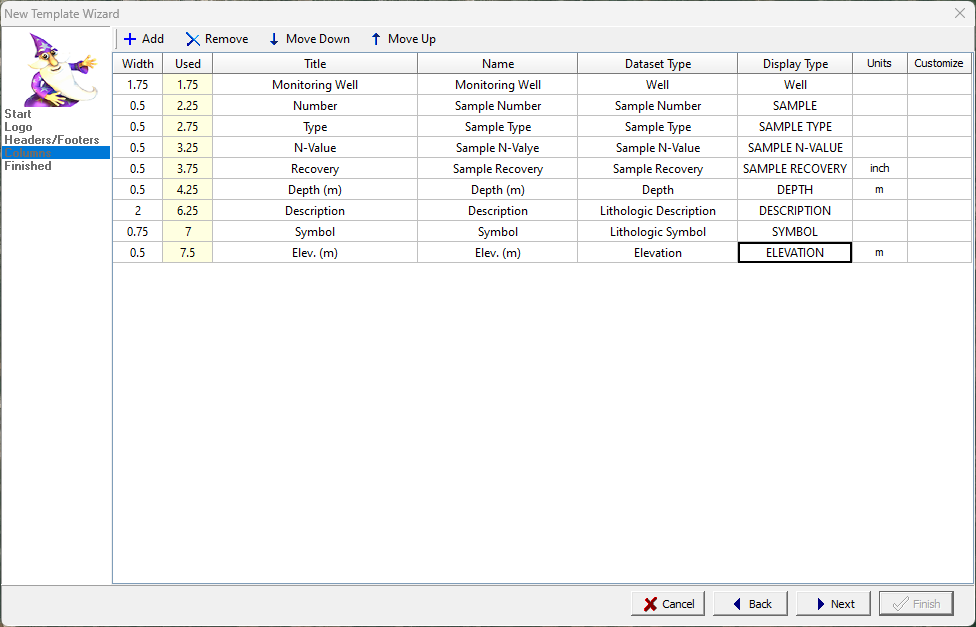
The last step is to specify the columns containing the depth related data.
Each row represents one column in the template. The row at the top will be on the left side of the template and the row at the bottom will be on the right side of the template. At the top there are buttons to add a column, remove the selected column, move the selected column down, and move the selected column up.
Width: This is the width of the column in page units.
Used: This is how much of the width has been used for the columns so far starting from the left. This is calculated and can not be adjusted.
Title: This is the title to display for the column. The title does not have to be the same as the column name and does not have to be unique. To display the title on more than one line use the Enter key. For graph columns, the title is entered on the Graph Properties form using the Customize button. When this column is clicked on a box will be displayed where the title can be entered. In addition, two checkboxes will be displayed where the title can be specified as being displayed horizontally or vertically.
Name: This is the unique name to use for the column. The name can be the same as the title.
Dataset Type: This is the type of dataset that can be entered in the column. When this column is clicked on a list will be displayed showing the types of datasets available.
Display Type: This is used to select the way to display the data for the column. For some columns such as text and graphs there is more than one way to display the data. If the dataset type supports more than one method of display, a list of display types will be shown when this column is clicked on. The majority of columns only support one display type and this field can not be changed.
Units: This is used to specify optional units for the dataset.
Customize: Depending upon the type of column, this button will be enabled or disabled. If the column can be customized it will be enabled. Press the button to customize the specific properties of the column. The form displayed will depend on the type of column.