

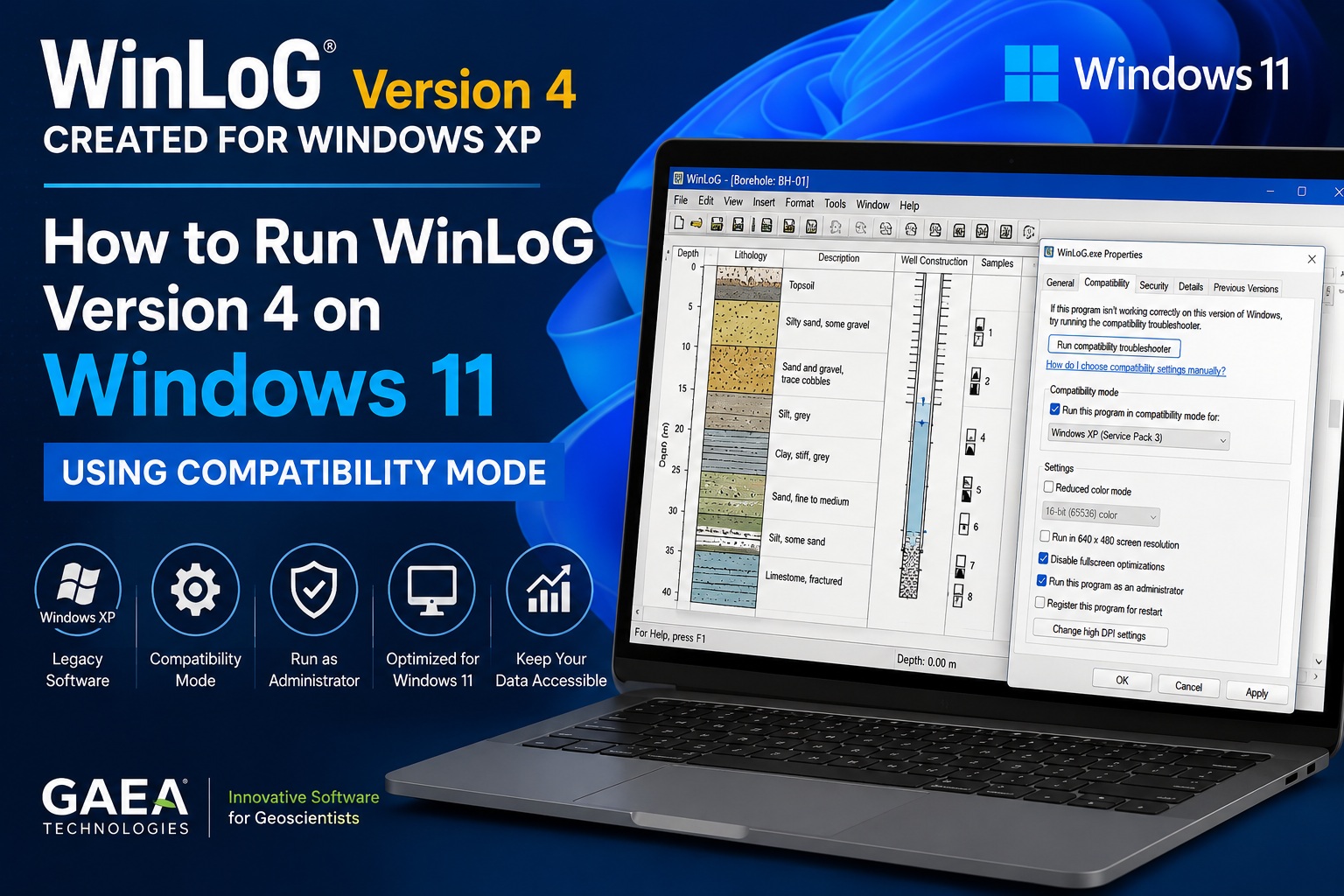
Although WinLoG Version 4 was originally designed for Windows XP, many users still rely on it for legacy projects, historical borehole databases, and specialized logging workflows. Fortunately, Windows 11 includes built-in compatibility tools that allow older applications to continue running on modern systems.
This guide explains how to configure WinLoG Version 4 to run properly on Windows 11 using Compatibility Mode.
Why Compatibility Mode Is Needed
Older Windows XP applications were designed for:
- 32-bit operating systems
- Older graphics systems
- Legacy runtime libraries
- Different folder permissions
- Administrative access models
Because of these differences, older software may experience:
- Startup crashes
- Missing controls or dialogs
- Graphics issues
- Printing problems
- Database access errors
- Permission issues
Windows 11 Compatibility Mode helps emulate the Windows XP environment so legacy applications can continue functioning correctly.
Step 1 — Locate the WinLoG Executable
First, locate the main WinLoG executable file.
Typical installation folders include:
C:\Program Files (x86)\GAEA\WinLoG4\or
C:\WinLoG\Look for files such as:
Winlog.exeor
WinLoG4.exeStep 2 — Open Compatibility Settings
- Right-click the WinLoG executable
- Select:
- Properties
- Open the:
- Compatibility tab
You should now see the Windows compatibility configuration options.
Step 3 — Enable Compatibility Mode
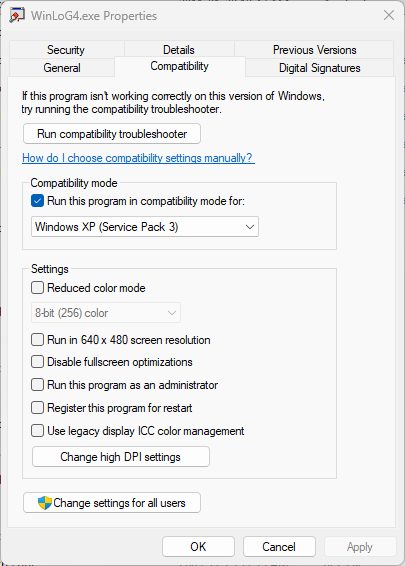
Under Compatibility Mode:
✔ Check:
Run this program in compatibility mode for:From the dropdown select:
Windows XP (Service Pack 3)This is usually the most stable option for WinLoG Version 4.
Step 4 — Enable Administrator Permissions
Older applications often require elevated permissions to:
- Write project files
- Access databases
- Save templates
- Print reports
Under Settings:
✔ Check:
Run this program as an administratorThis is one of the most important steps for stable operation.
Step 5 — Configure Display Settings (If Needed)
If the program interface appears distorted or graphics do not render properly, enable the following optional settings:
Recommended Options
✔ Reduced color mode (8-bit or 16-bit)
✔ Disable fullscreen optimizations
✔ Override high DPI scaling behavior
These settings can improve compatibility with older graphics libraries used by Windows XP-era software.
Step 6 — Apply the Settings
Click:
Applythen:
OKLaunch WinLoG again to test the configuration.
Step 7 — Test Database and Printing Functions
After WinLoG opens successfully, test:
- Borehole database access
- Template loading
- Printing
- Export functions
- Graphics rendering
- Lithology patterns
Older printing systems are often the first area where compatibility issues appear.
Recommended Installation Location
Modern versions of Windows protect the Program Files directory more aggressively than Windows XP did.
For best results, consider installing WinLoG Version 4 in a custom directory such as:
C:\WinLoG\instead of:
C:\Program Files\This can reduce permission-related issues.
Common Issues and Solutions
WinLoG Will Not Start
Try:
- Running as Administrator
- Using Windows XP SP3 compatibility
- Reinstalling the application
- Installing older runtime components if required
Database Access Errors
Ensure:
- The project folders are writable
- User Account Control (UAC) is not blocking access
- Databases are not stored in protected folders
Printing Problems
Older print engines sometimes have issues with modern printers.
Possible solutions:
- Print to PDF first
- Use compatibility mode
- Update printer drivers
- Disable advanced print features
Graphics or Screen Flickering
Try enabling:
- Reduced color mode
- DPI scaling override
- Disable fullscreen optimizations
Alternative Option — Virtual Machine
If Compatibility Mode does not fully resolve issues, another option is to run Windows XP inside a virtual machine using software such as:
- Oracle VM VirtualBox
- VMware Workstation
- Hyper-V
This approach creates a dedicated Windows XP environment specifically for legacy applications.
Final Recommendations
For long-term stability:
- Backup legacy databases regularly
- Avoid storing project files in protected system folders
- Run WinLoG as Administrator
- Keep compatibility settings enabled permanently
- Consider upgrading to newer WinLoG versions when possible
Conclusion
Even though WinLoG Version 4 was originally developed for Windows XP, it can still run successfully on Windows 11 using built-in Compatibility Mode settings. By enabling Windows XP compatibility, administrator permissions, and adjusting graphics settings where necessary, most users can continue accessing historical projects and legacy workflows without requiring a dedicated Windows XP computer.
If you require assistance with WinLoG installation, migration, or upgrading, contact GAEA Technologies support for additional guidance.