

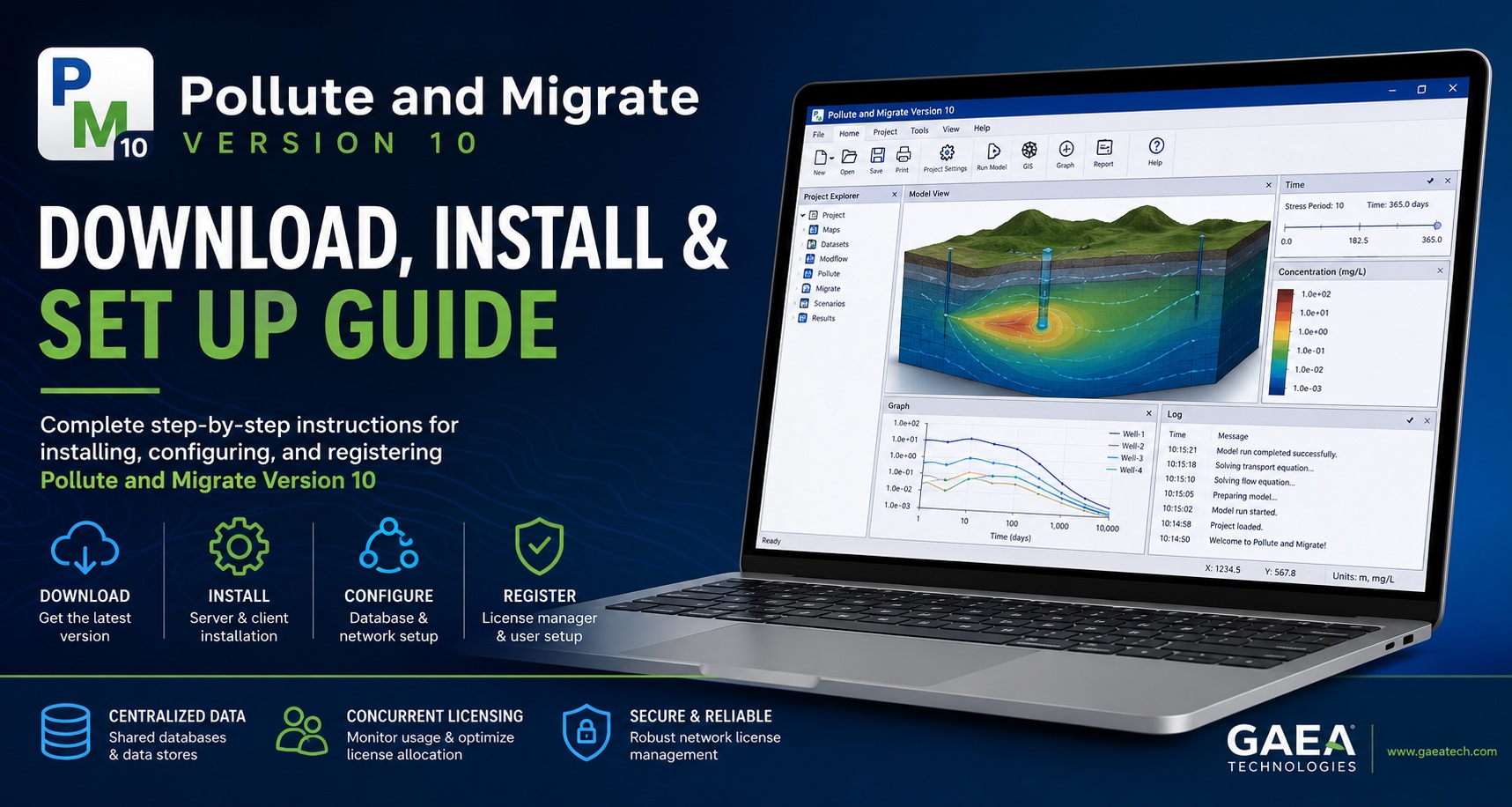
Pollute and Migrate Version 10 is a powerful environmental modeling and contaminant transport analysis platform developed by GAEA Technologies. Whether you are evaluating groundwater contamination, modeling migration pathways, or managing environmental remediation projects, proper installation and network setup are essential for reliable performance.
This guide explains how to:
- Download the software
- Install the full application
- Configure the network license manager
- Set up client computers
- Register licenses
- Configure databases and network settings
- Log in and begin using the software
The setup information below is based on the official License Manager documentation.
Downloading Pollute and Migrate Version 10
If you have not already downloaded the demo version, you can download the full installer using the link below. The demo contains the complete base application and all available modules. Once registered, the demo automatically becomes the fully licensed version.
Download Links
Pollute and Migrate Version 10
Use the installer below to download the main application:
www.gaeatech.com/public/PolluteMigrate10_Setup.exe
Network License Service
If you are installing a networked version for multiple users, download the license manager service installer:
www.gaeatech.com/public/PM10_License_Manager_Setup.exe
Default Login Credentials
After installation, the default local login credentials are:
| Username | Password |
|---|---|
| Admin | admin |
It is strongly recommended that you change the administrator password after installation for security purposes.
Understanding the Installation Types
Pollute and Migrate can be installed in several configurations:
- Single-user standalone installation
- Network server installation
- Multi-user client/server installation
According to the official documentation, network licensing is based on concurrent usage. This means the software can be installed on many computers, but only the licensed number of users can run the application simultaneously.
Installing Pollute and Migrate on the Server
For organizations using shared databases and concurrent licensing, the server installation should be completed first.
The License Manager guide explains that the server installation includes:
- The Network License Monitor application
- The PM License Manager service
- Program shortcuts and administration tools
Step 1 — Install the Main Application
Run:
PolluteMigrate10_Setup.exe
Install the full version on the server machine.
During the initial startup, configure:
- Database folder location
- Datastore folder location
The documentation recommends placing these folders on the network server.
Step 2 — Install the Network License Manager
Run:
PM10_License_Manager_Setup.exe
This installs:
- PM License Manager service
- Network License Monitor
Step 3 — Share the Data Directories
The official documentation emphasizes that the database and datastore directories must:
- Be shared on the network
- Have “Full Control” permissions for all users
Failure to properly share these directories may result in:
- Database connection failures
- Licensing issues
- Read/write permission errors
Starting the License Service
After installation, the PM License Manager service must be started before client computers can obtain licenses.
The service typically starts automatically after rebooting the server. It can also be started manually through Windows Services.
To Start the Service Manually
- Open the Windows Control Panel
- Go to:
- Administrative Tools
- Services
- Locate:
- PM License Manager
- Click:
- Start
Installing Pollute and Migrate on Client Computers
Client installations are similar to standalone installations, but they must connect to the shared server resources.
The documentation notes that the client installation should use local default folders during installation to avoid overwriting shared server databases.
Step 1 — Install the Software
Run:
PolluteMigrate10_Setup.exe
on each client computer.
Step 2 — Do NOT Overwrite Shared Databases
When prompted during installation:
- Use the default local installation folders
- Do not install new databases/datastores on the client
The server already contains the shared project databases.
Configuring Database and Datastore Folders
After installation, each client computer must point to the server databases.
The official guide describes this configuration under “Setting the Database and Datastore Folders.”
To Configure the Paths
- Launch Pollute and Migrate
- Log in as an administrator
- Go to:
- File → Preferences
- Open:
- Datasources
- Set:
- Database folder
- Datastore folder
to the shared server directories.
This allows all users to access the same central project data.
Configuring Network Licensing
If the network option was not selected during installation, it can still be enabled later.
The documentation explains this process under “Setting Network Options.”
To Configure Network Licensing
- Open:
- File → Preferences
- Select:
- Network License
- Set:
- Networked = Yes
- Enter:
- Server name or IP address
- Set:
- Port Number = 3002
- Select the modules to request from the network
The official guide specifies that the port must always be set to 3002.
Understanding the License Manager
Pollute and Migrate includes a centralized Network License Monitor for managing licenses and users.
The dashboard allows administrators to:
- Monitor active licenses
- Track user activity
- Review license usage history
- View logs and events
- Manage concurrent users
Key benefits include:
- Real-time license monitoring
- Improved license allocation
- Usage trend analysis
- Compliance auditing
Registering Your License
The software initially runs in demo mode until licenses are registered.
The License Manager documentation explains that modules can be registered automatically using an Order ID or manually using unlock codes.
Automatic Registration
If you purchased online:
- Open:
- License Manager
- Select the module
- Click:
- Register
- Enter:
- Order/Purchase ID
- Complete registration
Manual Registration
If automatic registration is unavailable:
- Export the serial number
- Email the registration request to:
- Import the unlock code file provided by GAEA Technologies
Managing Users
Before users can log into client computers, they must have user accounts created in the Network License Monitor.
The documentation explains that user accounts contain:
- Username
- Password
- Privilege level
Available privilege levels include:
- Administrator
- Power User
- Limited User
- Guest
Administrators can:
- Add users
- Edit users
- Remove users
- Export/import accounts
Monitoring Active Licenses
The Active Locks panel shows all licenses currently in use.
Administrators can view:
- License name
- Username
- IP address
- Login date/time
This is particularly useful for troubleshooting concurrent licensing limits.
Viewing Logs and Events
The Event Viewer allows administrators to audit licensing activity.
The system logs:
- User logins
- License requests
- Startup events
- Licensing operations
Logs can also be exported to XML format for recordkeeping and troubleshooting.
Final Setup Recommendations
Before deploying Pollute and Migrate Version 10 across your organization:
- Verify the PM License Manager service is running
- Confirm shared folders have proper permissions
- Ensure port 3002 is open on firewalls
- Test client connectivity
- Create administrator and user accounts
- Register all required modules
Conclusion
Pollute and Migrate Version 10 provides a flexible and scalable deployment system for both individual users and enterprise teams. With centralized licensing, shared databases, and concurrent user management, organizations can efficiently deploy the software across multiple workstations while maintaining secure and consistent project data.
By following the steps above, you can successfully install, configure, and register Pollute and Migrate Version 10 for your organization.
For additional support or licensing assistance, contact:
Official License Manager documentation reference:
www.gaeatech.com/public/PM10_License_Manager.pdf