

To get our software up and running, it first needs to be installed on your computer. There are two types of installation, single and network. If you have not already downloaded the software, you can download it using the button at the end of this post. The demo will automatically become the full program after it is registered.
Single User Installation
When installing the software you must be logged in as an administrator. The following steps occur during the installation:
- The application is installed on your computer/
- Files for the databases and data store are copied to your computer.
- Shortcuts are placed on your Start menu and desktop
After the application has been installed, there are a few more steps before it is ready for use.
First-Run and Program Setup
The first time that the program is run you must be logged in as an administrator so that the directories can be created.
The default administrator login is:
Username: Admin
Password: admin
The username and password can later be changed within the program.
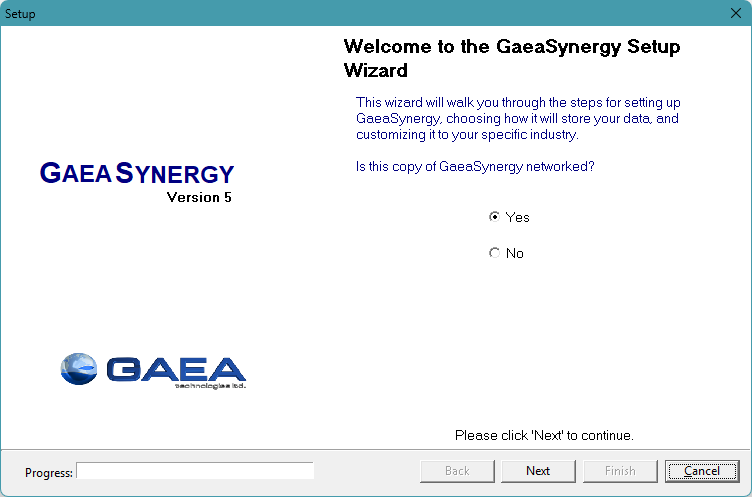
When the program is started for the first time a setup wizard will run that guides you through the steps below.
- Selection of a single user or network user installation.
- The next step is to specify the database and data store locations.
- And the last next step is to specify a default basemap for the application. .
After the above steps are completed, the application will start initially in demo mode. You can use the application in demo mode for up to 20 times before you need to register it.
Network Installation
When the application is managed on a network the databases and datastore for the application are also normally stored on the network server. There are two ways to install the databases and datastore on the server. The easiest method is to install the application on the server and select the location of the database and datastore directories when the application is first run on the server. Alternatively, if you prefer not to have the application on the server you can install it on a client computer and set the database and datastore directories to the server when the application is first run on the client.
After the databases and datastore have been installed on the server it is important not to overwrite them each time the application is installed on a client computer. To do this make sure you answer “No” to the last question about installing the databases and datastore when the program is first run on a client computer. Instead database and datastore directories should be set to the server when the application is first run.
It is important to make sure that the directories on the server where the databases and datastore are located are shared and have their file access permissions set to “Full Control” for all users.
Server Installation
The licensing of the application on a network is handled through the a service called [Product] License Manager. Where [Product] is the name of the application.
The service handles the logging in of users and grants license requests and has no user interface. The License Monitor application provides a user interface for adding/removing users and managing licenses.
To get the application up and running, the service and network monitor need to be installed on the server.
The following steps occur during the installation:
- The License Monitor is installed on your computer
- The License Manager service is installed.
- Shortcuts are placed on your Programs menu.
After the service has been installed on the server it needs to be started before it can be used. This is done automatically when the server is restarted or it can be done manually through the Windows Services Manager. To do it manually open the Services list from Administrative tools in the Windows Control Panel. Select the [Product] License Manager in the Services list and then select Start.
Client Installation
The installation on a client is the same as the single user installation. The only difference from the single user installation is that the network option should be selected during the first-run setup stage of the program. In addition, after the databases and datastore have been installed on the server it is important not to overwrite them each time it is installed on a client computer. To do this make sure you use the default database and datastore directories (on the local C drive) during program installation.
After the program has been installed on the client, the database and datastore folders need to be set to the server. To do this run the program and log in as an administrator (this option is not available to non-administrator users). Select File then Preferences and go to the Datasources tab. On this tab set the folder paths for the database and datastore to the ones on the server.
If the network option was not selected during the installation on the client computer, then it can be set in the preferences for the application. Select File then Preferences, and select the Network License tab on the left.
To get the licenses from the network, set Networked to yes and enter the network name or IP address. The port number. should always be 3000 for the network. This information is displayed on the Network Monitor form on the network. In the box below the network settings select the licenses to request from the network.