

Boring and well data can be imported and exported to and from gINT version 8 project databases. These project database have the extension “gpj” and are the same as a Microsoft Access database file.
Importing gINT Data
A gINT project can be imported by selecting File > Import > gINT Project. A file dialog will be displayed to specify the gINT project file to import. After the file has been selected, the import form below will be displayed. This form has two tabs, one for project information and one for table information,
Project Information
When the gINT project database is selected, the project number, name, client, and location will be read from the database. In addition the project boundaries will be determined from the point locations.

Table Information
This tab is used to select the tables and columns to import. On the left side of this tab is a list of tables in the gINT project database. When a table is selected, the right side of the form will display the columns in the table. The entire table can be excluded from the import by unchecking the Import box.
When a table is selected to import, the form will display the columns (fields) in the table that can be imported. The type of dataset within <%PRODUCT%> can be selected for each column as well as the way that data will be displayed. In addition, individual columns (fields) can be included or excluded by clicking on the Include box.

Scripts
To make this process easier if you are importing gINT project files a lot, you can create and use scripts for the import settings. To create a new script with the current display type settings click on the Save Script button and enter a name for the script. The script file should only be saved after all of the export settings have been entered. To open and use an existing script, click on the Use Script button and select the script.
Borehole and Well Selection
When the dataset and display types have been specified, click the Ok button to proceed. Next, the borings/wells to be imported must be selected on the Import form below.

Template Selection
After the borings and wells have been selected, a template must be selected or setup for the imported data. The template used to display the imported boring and well data can either be created automatically by the program or an existing template can be selected. These two options are discussed in the topics below.
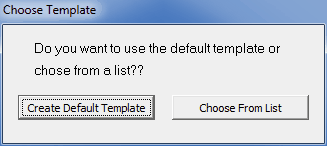
Creating a Default Template
If create a default template is selected the form below will be displayed. This form is used to select the columns to include in the template. The columns are determined by the data contained in the gINT project file that is being imported. Columns can be moved between the available list to those to be included in the template using the left and right arrow buttons, The order of the columns to be shown in the template can be adjusted using the up and down arrow buttons. Columns at the top of the template list will be displayed on the left side of the template and the ones at the bottom on the right side of the template.

After the columns have been selected, press the Ok button to display the form below. This form is used to specify the template name, data format, and page setup. When his information has been specified click the Ok button to finish importing the data.

Selecting an Existing Template
If select an existing template is chosen the form below will be displayed. This form displays the templates that can be selected for use with the imported data. Select the template and then click the Ok button to finish importing the data.

Exporting gINT Data
Before any data can be exported the project must first be opened. After a project has been opened, boring and well data can be exported to a gINT project database file by selecting File > Export > gINT Data. A file dialog will be displayed to specify the file to save the exported data.
Database Selection
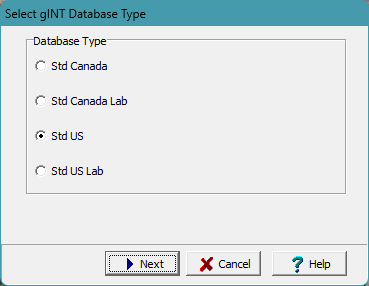
After the file name has been specified, the type of gINT database can be selected.
Borehole and Well Selection
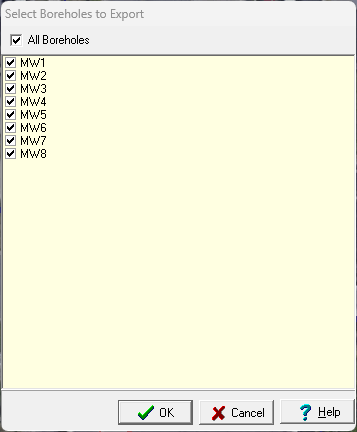
Next, the borings and wells to be exported must be selected on the Export form below.
Data Selection
The next step is to specify the data to be exported and add any additional tables for the data. A wizard is used to guide you through this process. This wizard guides you through the steps required to export the data and is discussed in the topics below.
Exporting gINT Project Information
The first step is to specify any additional project information to be exported. After the information has been entered, the Next button can be used to go to the next step.
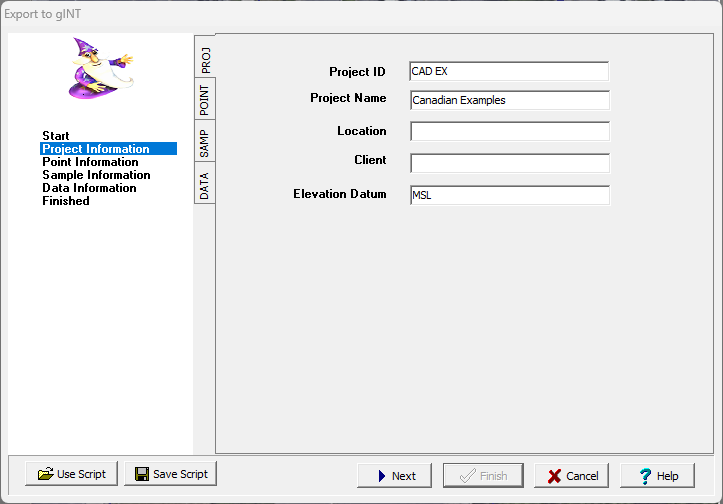
To make this process easier if you are exporting to gINT files a lot, you can create and use script files to for the export settings. To create a new script file with the export settings click on the Save Script button and enter a name for the script. The script should only be saved after all of the export settings have been entered. To open and use an existing script, click on the Use Script button and select the script.
Exporting gINT Point Information
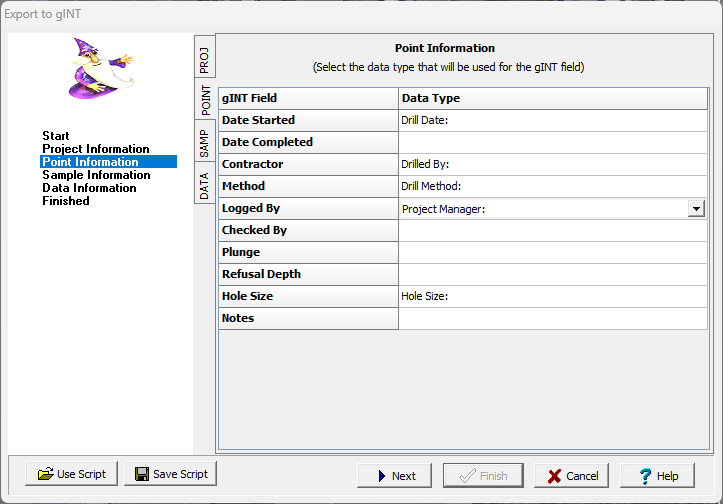
This step is used to specify the location (borehole/well) information to export. The table shown below can be used to specify what data type from the boring/well log is used for each gINT field. To change the data type to be used click on it and select it from the combo box.
Exporting gINT Sample Information
This step is used to select the sample data type for each gINT sample type.

Exporting gINT Data Information
This step is used to specify what datasets from the borings/wells are to be exported. The datasets present in the borings/wells are displayed in the table along with the gINT dataset to use for the dataset. The gINT dataset can be changed by clicking on the dataset and selecting it from the combo box. The checkbox on the right is used to determine if the dataset is to be included in the export.
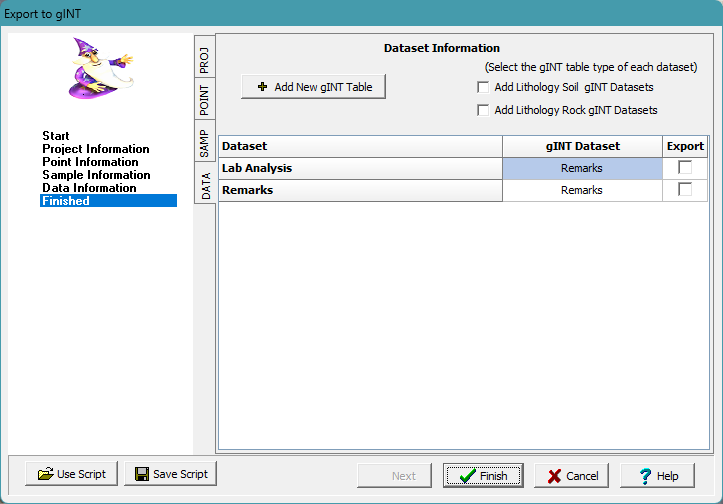
The gINT datasets that can be selected are from the tables TESTS and REMARKS in the gINT database. If you would like to add datasets for the LITHOLOGY SOIL and LITHOLOGY ROCK tables click on the box “Add Lithology Soil and Rock Datasets”.
Additional tables can be added to the standard gINT project database by clicking on the “Add New gINT Table” button. These tables can be used to export data from <%PRODUCT%> that is not normally contained in the gINT database. The creation of the tables is described in the topic below. When the table is created the new field types specified for the table will be added to the list of gINT datasets that can be selected.
If no CPT data is present in the borings and wells to be exported, this is the last step, Click the Finish button to complete the export process.
Creating a new gINT table
Additional tables can be added to the gINT database using this form.

Exporting gINT CPT Information
If there is CPT data in the borings and wells to be exported, the Other tab will be shown, This tab is used to specify additional (optional) information for the CPT data.

After the additional information has been entered, click the Finish button complete the exportation process.
Transform your geoscientific analysis with GaeaSynergy software, designed for engineers and geoscientists frustrated by complicated tools.