

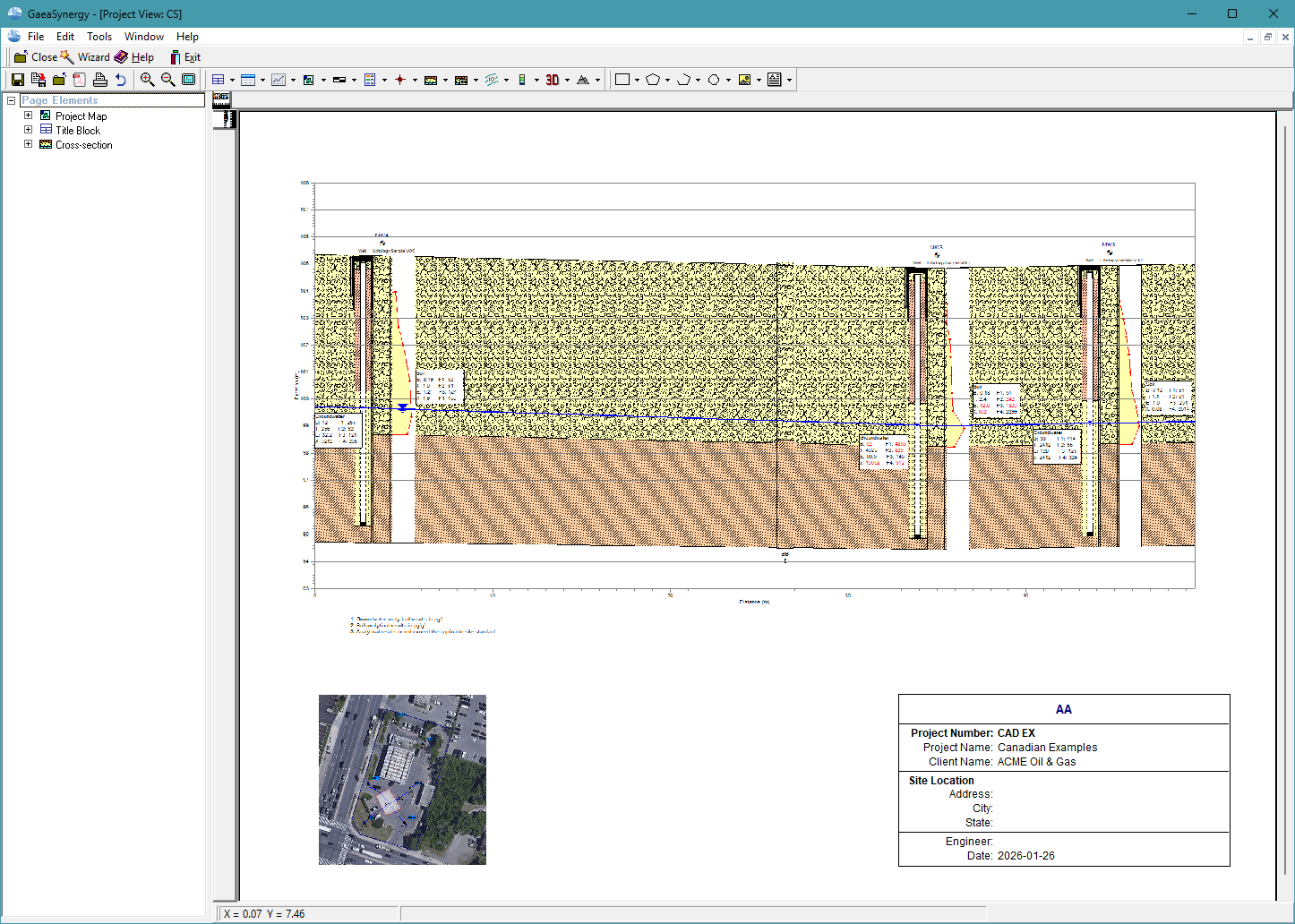
To print or export a cross-section to an Adobe PDF it must first be displayed in a project view. Project views are used to display and print various types of project data. These views can contain a single data element or a collection of data elements. Types of data elements that can be shown in a view include:
- boring and well logs
- cross-sections
- 3D views
- project maps
- contour maps
- title blocks
- tables
- graphs
- scale bars
- images
- graphic objects; such as, text, bitmaps, polygons, lines, etc.
Creating a Project View
The project view is based upon the Project Template that is selected when the view is created. To create a project view select File > New > Project View. The select Project Template form will be displayed. If a default template has been specified for the project it will be highlighted in the list.
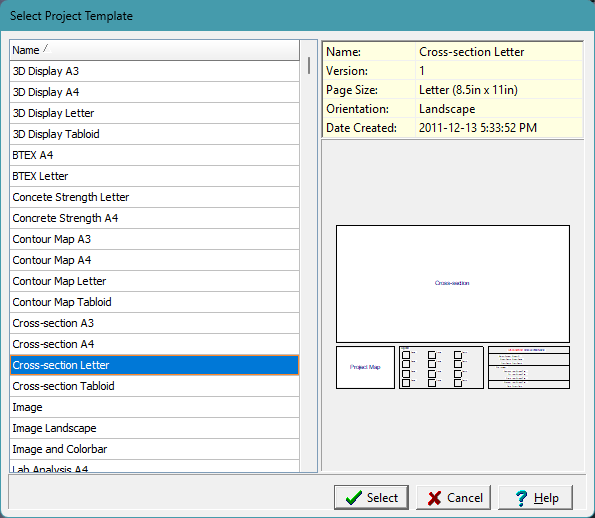
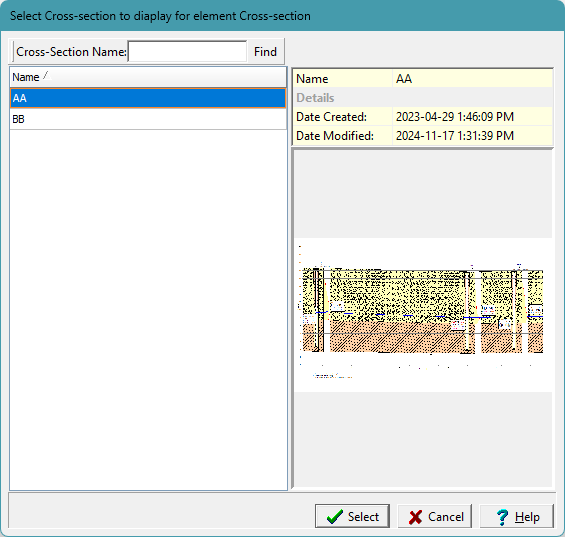
To create the project view, select the desired template from the list. After this you will be prompted to select any boring and well logs, cross-sections, contour maps, images, and 3D views data elements contained in the template to show on the project view. In this example the project view contains a cross-section.
Editing a Project View
After the project view has been created it can be edited. To edit a data element in the project view either select the Edit item from the data element button menu or select the data element in the sidebar and select Popup > Edit. With the exception of title blocks, tables, graphs, and cross-section legends, the editing of data elements is limited to their display properties and is described in the Edit Data Properties section. Annotation on the page document can be added, edited, and deleted.
Printing a Project View
The project view can be printed by selecting File > Print or pressing the Print button on the toolbar.
Exporting a Project View to a PDF
The project view can be sent to a PDF file by either clicking on the PDF button on the toolbar or selecting File > Send to PDF. The Export to PDF form below will be displayed.
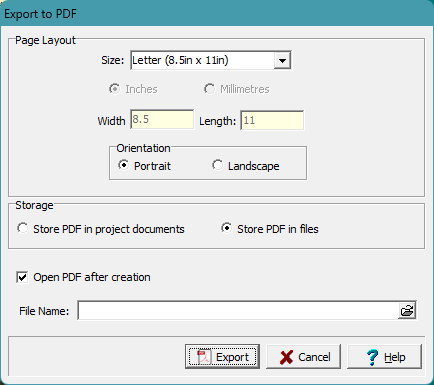
The PDF can either be saved as a project document of a file. If it is saved as a project document it will be saved in the project and can later be opened within the project.
Transform your geologic workflows with WinFence, the ultimate cross-section and fence diagram software. If you’re ready to cast aside dense software, start your journey with WinFence today!