

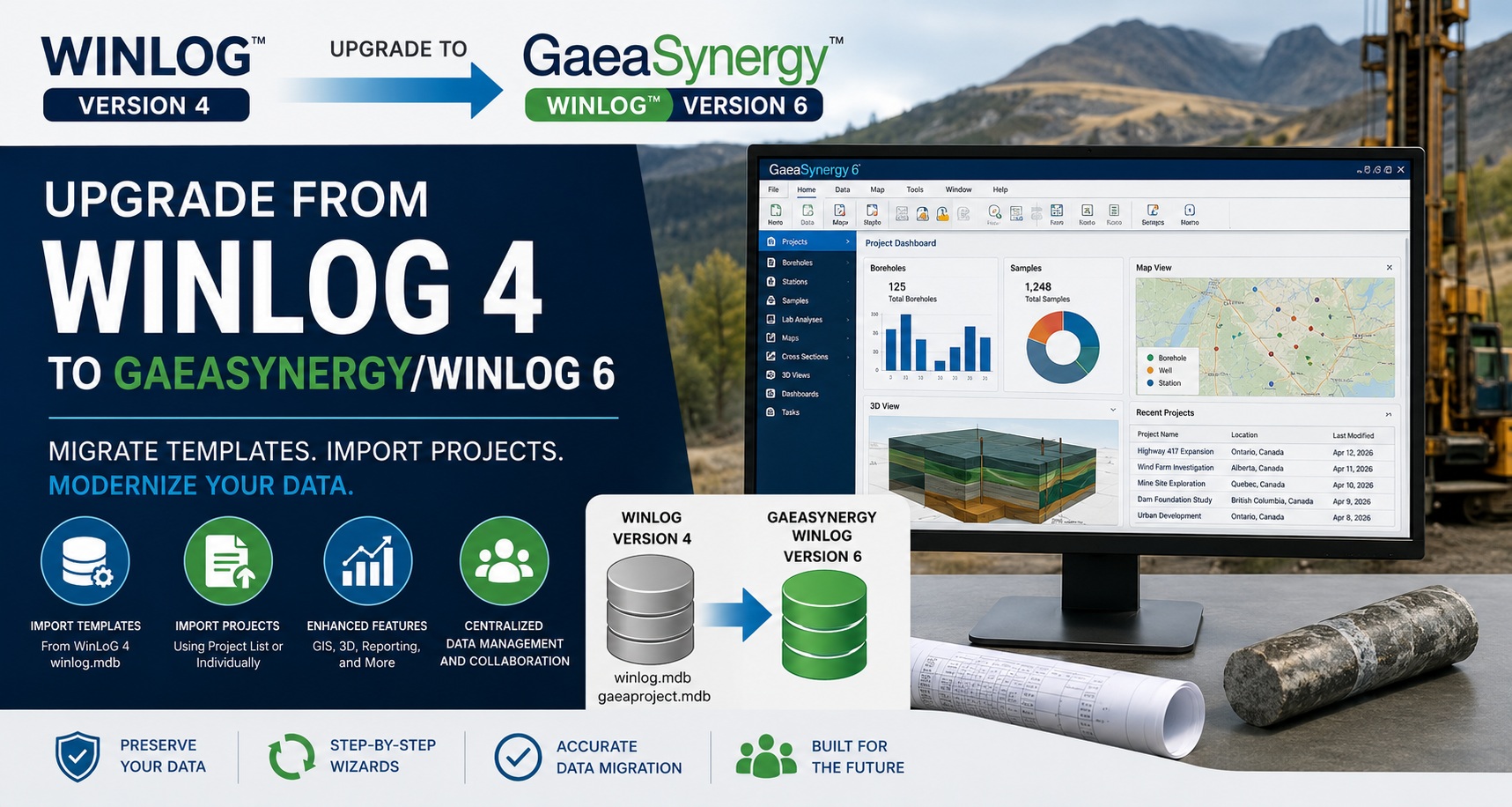
Migrating from WinLoG version 4 to the GaeaSynergy/WinLoG version 6 platform provides significant improvements in project management, GIS integration, reporting, data visualization, collaboration, and centralized geological data management.
Because GaeaSynergy version 6 uses a newer database architecture than WinLoG version 4, existing templates and projects must be imported into the new platform using the built-in migration wizards.
This guide explains the upgrade process and the available import options for templates and projects.
Why Upgrade to GaeaSynergy/WinLoG Version 6?
GaeaSynergy version 6 expands far beyond traditional borehole logging by integrating:
- Advanced GIS mapping
- Project dashboards
- Borehole and well management
- Cross-sections and contour mapping
- 3D visualization
- Environmental and geotechnical workflows
- Task and scheduling management
- Enterprise database support
- Centralized project management
The platform is designed for environmental, geotechnical, mining, petroleum, and hydrogeological applications.
Important Upgrade Information
The WinLoG version 6 module in GaeaSynergy uses a different database format than WinLoG version 4.
As a result:
- WinLoG version 4 databases cannot be opened directly in version 6
- Existing templates must be imported
- Existing projects must be migrated using the provided import wizards
- The process preserves historical borehole and project information
The migration tools were specifically designed to simplify the upgrade process and guide users step-by-step.
Before You Begin
Before starting the upgrade:
Recommended Preparation Checklist
- Backup all WinLoG version 4 databases
- Backup project directories
- Backup custom templates and legends
- Verify project locations
- Ensure Microsoft Access database files are accessible
- Close all open WinLoG projects before importing
Importing WinLoG Version 4 Templates
In WinLoG version 4, all templates are stored in the main database file:
winlog.mdbTemplates can be imported:
- Individually
- Multiple at once
Important
When importing multiple templates, no project can be open.
Importing Multiple Templates
To import multiple WinLoG version 4 templates:
Step-by-Step
- Open GaeaSynergy/WinLoG version 6
- Select:
File > Import > WinLoG 4 Data > Templates > WinLoG Database- The Import a List of WinLoG Template Database wizard will appear
- Follow the wizard steps
- Select the version 4
winlog.mdbdatabase - Choose the templates to import
- Complete the import process
The wizard guides users through each step to simplify the migration process.
Importing WinLoG Version 4 Projects
There are two methods available for importing version 4 projects:
Option 1 — Import Using a Project List
Option 2 — Import Individual Projects
The best method depends on how your projects are organized.
Option 1 — Importing Using the Project List
This is the recommended method when:
- Projects remain in their original directories
- Project paths in version 4 are still valid
- Multiple projects need to be imported
The list of projects in WinLoG version 4 is stored in:
gaeaproject.mdbSteps to Import a Project List
- Open GaeaSynergy version 6
- Ensure no project is currently open
- Select:
File > Import > WinLoG 4 Data > Project List- The Import a List of WinLoG Projects wizard will appear
- Select the
gaeaproject.mdbfile - Review the detected projects
- Start the import
The wizard automatically guides you through the migration process.
Option 2 — Importing Individual Projects
This method is recommended when:
- Projects were moved from their original directories
- Some project paths are no longer valid
- Only selected projects need to be migrated
Steps to Import an Individual Project
- Open GaeaSynergy version 6
- Ensure no project is currently open
- Select:
File > Import > WinLoG 4 Data > Project- The Import a WinLoG Project wizard will appear
- Browse to the individual project database
- Follow the wizard prompts
- Complete the import
Both WinLoG version 3 and version 4 projects can be imported individually using this wizard.
What Happens During the Import?
During the migration process, the import wizards:
- Convert legacy database structures
- Import borehole logs
- Import project metadata
- Import templates
- Preserve lithology and sample data
- Convert project relationships
- Prepare the data for use in GaeaSynergy version 6
Features Available After Upgrading
After migrating to GaeaSynergy/WinLoG version 6, users gain access to advanced capabilities including:
GIS and Mapping
- Interactive basemaps
- Spatial queries
- Borehole location mapping
- Google and Bing map integration
Project Management
- Centralized project dashboards
- Project categories and descriptors
- Archiving and retrieval
- Project locking and permissions
Borehole and Geological Data
- Enhanced borehole logs
- Cross-sections
- Contour maps
- 3D visualization
- Laboratory data integration
Enterprise Features
- Network licensing
- Multi-user collaboration
- Scheduling and task management
- Document management
- Integrated QA/QC workflows
These features are extensively documented in the GaeaSynergy Version 6 User Guide.
Troubleshooting Tips
Projects Cannot Be Found
If projects cannot be located during import:
- Verify the original project directories still exist
- Use the individual import method if paths changed
Import Wizard Does Not Start
- Ensure no project is open
- Verify database file permissions
- Confirm the
.mdbfiles are not read-only
Missing Templates
- Re-import directly from
winlog.mdb - Confirm the template exists in version 4 before importing
Best Practices for Migration
To ensure a smooth upgrade:
- Import templates first
- Import projects second
- Validate imported boreholes
- Test report generation
- Verify GIS coordinates and maps
- Backup converted projects
Conclusion
Upgrading from WinLoG version 4 to GaeaSynergy/WinLoG version 6 modernizes your geological and geotechnical data management workflows while preserving valuable historical project information.
The built-in migration wizards make it easy to import:
- Templates
- Borehole logs
- Projects
- Legacy databases
With enhanced GIS, reporting, visualization, and enterprise management tools, GaeaSynergy version 6 provides a scalable platform for modern subsurface data management.