

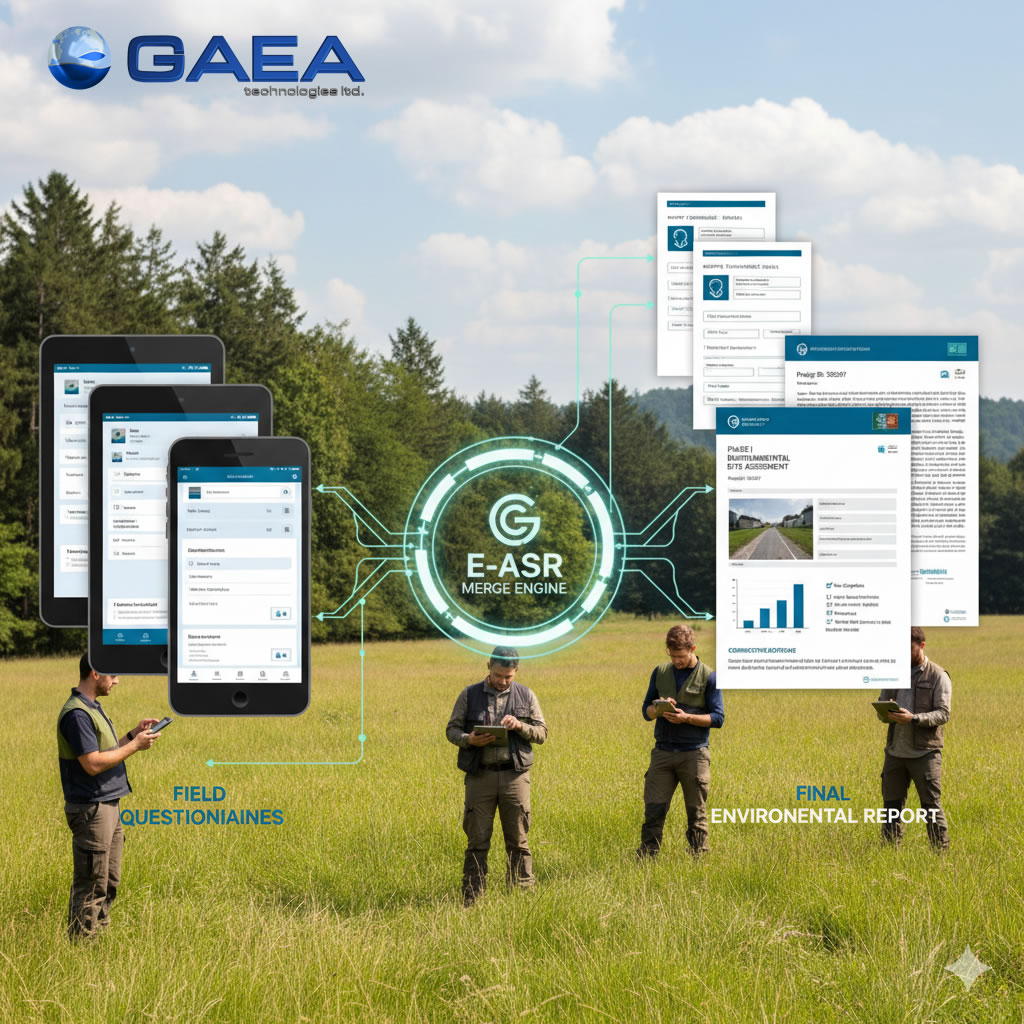
In environmental consulting, speed and accuracy are paramount. GAEA Technologies E-ASR (Environmental Automated Standardized Reporting) is a powerful tool designed by engineers to automate the production of Phase I and II ESAs, environmental compliance audits, and transaction screenings. By using intelligent questionnaires and dynamic templates, you can transform raw field data into professional, industry-standard reports with minimal manual effort.
Dynamic Report Templates and Merge Fields
A Report Template is a formatted document that acts as a blueprint for the final output. It utilizes Merge Fields as intelligent placeholders to bridge the gap between field data and the final report.
- Mapping Questions to Fields: Every question in the questionnaire corresponds to a specific merge field name.
- The Merging Engine: When generating a report, the E-ASR engine identifies these fields and replaces them with the actual data collected. It can insert not just single values, but entire dynamic paragraphs based on specific answers.
- Automated Formatting: Beyond text, these fields can automatically insert georeferenced maps, project photos, and even Google or Bing street views into the correct appendices. This ensures that the final document is professional, fully formatted, and ready for delivery.
Prior to creating a questionnaire a report template using Microsoft Word should be created. The report template is a generic form of the final report and contains keywords where the specific answers to the questionnaire are to be merged into the report. These keywords are highlighted in the report template using a unique style created for the program.
The answers to be merged into the report are not necessarily the direct answers to the questions, but are the text responses associated with the answer. For example, if the answer to the question “Are there any ACMs suspected?” is “No” the text merged into the final report is not necessarily “No” but could be a paragraph of text that has been associated with this response; such as, “There are no asbestos containing materials suspected on the subject property.” This response can be further edited prior to being merged. These associations are defined as part of the questionnaire and are entered during the creation of the questionnaire.
The easiest method to create a report template is to edit a copy of an existing report in Word. This edited report template can then be imported as described below.
Step 1: Importing a Report Template
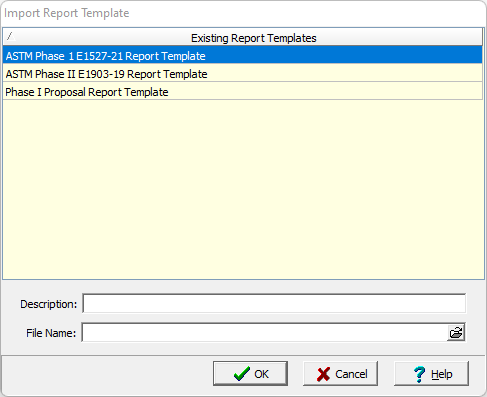
To import a new report template select File > Import > Report Template. The Import Report Template form will be displayed showing the current report templates. Specify a name (description) and select the file containing the report template, then press Ok to import the report template
Step 2: Add a Style to the Word Document
A style for the keywords in Word can be added to the report template and used to highlight the keywords. These keywords should replace the text in the report that will change for each questionnaire response. Proper placement of the keywords and the text to be substituted requires planning and some trial and error experience. Before editing a report template it is recommended that the example report templates included with the program be reviewed.
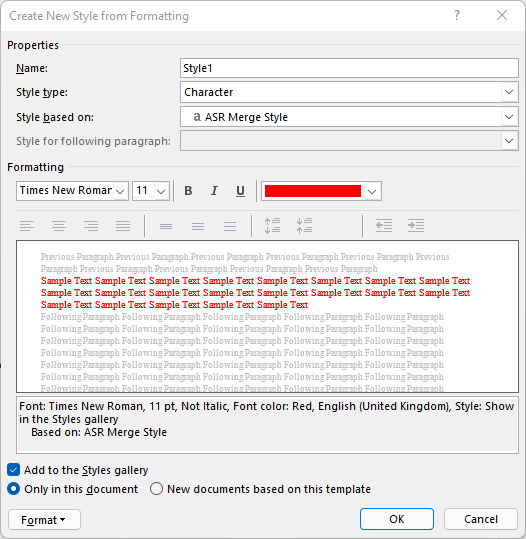
The name of the style used to highlight the keywords in the report template is specified in Preferences in E-ASR. The name of the style specified in Word must exactly match the name used in E-ASR. Before entering the keywords in the report template the style should be added to the Word Document if it does not already exist. There are two types of styles in Word, paragraph and character. The style must be a character style.
To add the character style to the report template, open the report template in Word and then select the Create a Style from the Style bar. Enter the name of the style as what was specified in the E-ASR preferences. In the Style type box select Character then change any other format options desired such as font style and color. To make it easier to recognize the keywords in the report template it is recommended that the style have a different color and font.
Step 3: Assign the Style to Keywords
After the style has been added to the report template in Word, it can be used to highlight the keywords. To change the style of a keyword select the keyword and then either select the style from the Style bar in Word.
Questionnaire Design and Predesigned Question Types
The questionnaire serves as the primary data-capture tool, designed for consistency across various field users and devices. It is built using predesigned question types that guide the data entry process:
- Standard Inputs: Includes Text Input for descriptive answers, Numeric Input for precise values (e.g., pH readings), and Date/Time pickers.
- Selection Controls: Drop-down and Checkboxes standardize responses like “In Compliance” or “Non-Compliant”.
- Rich Media & Attachments: Specialized types for File Uploads allow for the direct attachment of photo evidence, while Signature Fields capture digital approvals on-site.
- Advanced Controls: Section Breaks organize long forms, and Conditional Logic ensures that only relevant questions appear—for example, showing a “Corrective Actions” section only if a “Non-Compliant” status is selected.
After the report template has been created the next step is to create a questionnaire that is used to collect the responses for a report. This questionnaire will assign a keyword specified in the report template to each question. The text associated with the answer to that question will then replace the keyword when the questionnaire and report template are merged to create a final report.
Questionnaires are divided into sections and subsections which can contain any number of questions. For every question a question type is selected. The question type determines the format of the question and allowable answers that are used to collect the response data. There are numerous question types that can be selected and additional question types can be created. After the question type has been selected and the question entered, the text associated with each allowable answer is entered. This is the text that will actually be merged into the final report.
Step 1: Creating a Questionnaire
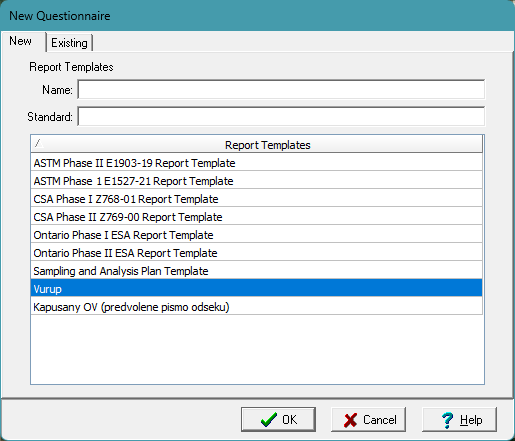
To create a new questionnaire either click on the New button then select Questionnaire or select File > New > Questionnaire. Specify the name and standard for the questionnaire.
Step 2: Editing a Questionnaire
After a questionnaire has been created or opened, a tree view will be displayed showing the sections, subsections, and questions specified in the questionnaire.
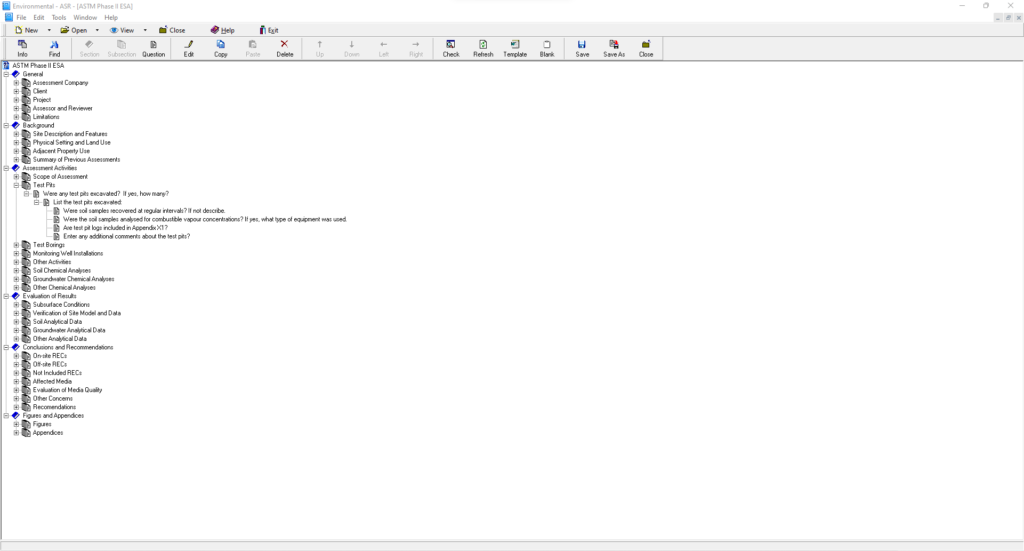
Sections in the tree view can be expanded and collapsed by double clicking on the section name. When the section is collapsed only the section is displayed and the subsections are hidden. When the section is expanded all of the subsections are displayed below the section. Subsections can contain one or more questions and can be expanded or collapsed by double clicking on the subsection name. When the subsection is collapsed only the subsection is displayed and the questions are hidden. When the subsection is expanded all of the questions are displayed below the subsection. The sections and subsections can be edited as described in the sections below.
Questions can also contain sub-questions that can be shown be clicking beside the question. A question can be edited by double-clicking on the question or highlighting the question then selecting Edit from the popup menu.
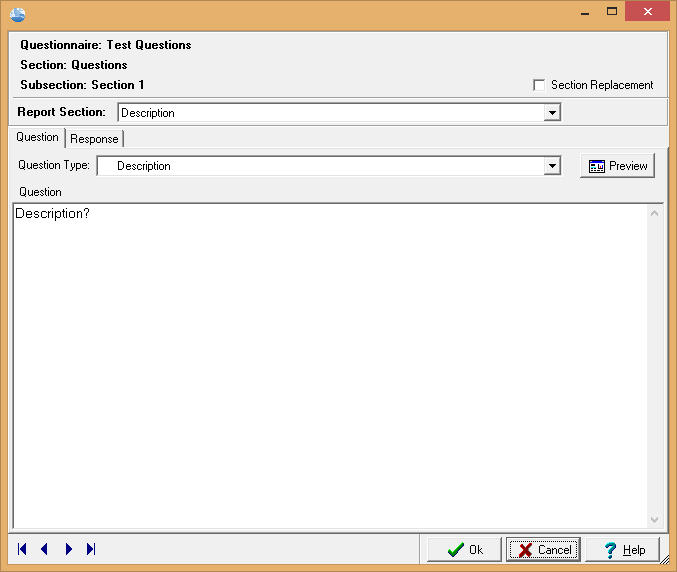
To edit a question double click on the question. The question can then be edited in the Question form . This form has two tabs, one for the question and one for the report. The question tab is used to specify the question and the report tab is used to specify the text that will be inserted into the report during the merging of the report responses and report template.
Report Section
At the top of the form there is a combo box where you can select the keyword in the Report Section. When the arrow on the right is selected a list of keywords that have been entered in the report template will be displayed. A keyword from the list must be selected for the question. This keyword will determine where the text results of the question will be placed in the report when it is merged. If no keyword is selected the results of the question will not appear in the report.
Organizing Questions
In addition to being organized under sections and subsections, questions can also be sub-questions of a question. Sub-questions can be used to select which question will follow the answer for a branched question. Branched questions include radio buttons or checkboxes. The number of branches depends on the number of radio buttons or checkboxes. The assignment for the next question in a branch is specified on the Response tab.
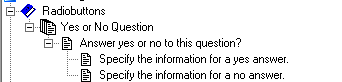
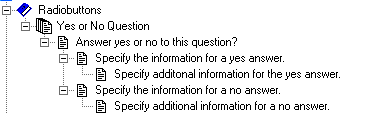
For example, if the question has a yes or no answer, one sub-question can be assigned for a yes answer and another sub-question can be assigned for the no answer.
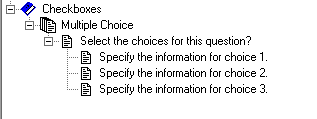
Another example would be a multiple choice question using checkboxes where each sub-question is used to specify the information for each selected checkbox.
Sub-questions can also have sub-questions, this can be used when there are multiple sub-questions for one branch.
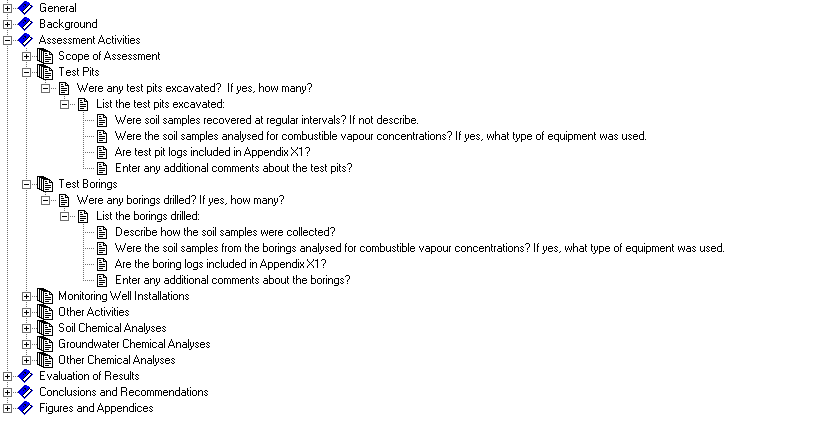
Below is an example used in the ASTM Phase II ESA questionnaire. In this example, if test pits were excavated a list of tests pits is specified and then additional questions are asked about the test pits.
Summary
GAEA E-ASR streamlines the environmental reporting lifecycle by combining mobile data collection with an advanced merging engine. By mastering its questionnaire and template tools, firms can significantly reduce reporting time, minimize human error, and ensure every report meets rigorous industry standards like ASTM or CSA.