

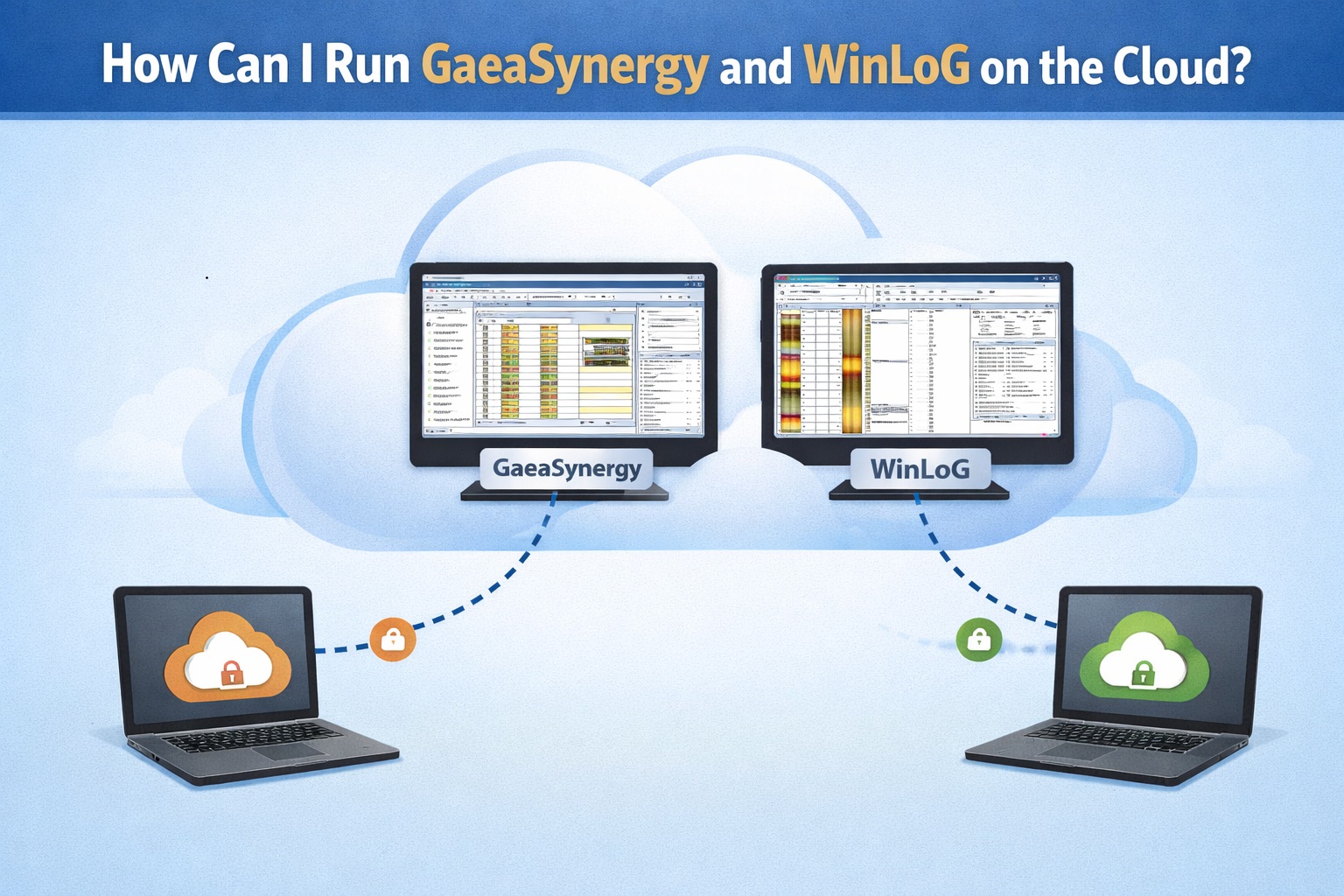
To deploy the network versions of GaeaSynergy and WinLoG in a cloud environment, you must set up a persistent Windows-based Cloud PC or Virtual Private Server (VPS) to host the central database and license manager, ensuring seamless access for your remote geotechnical teams.
Transitioning your GAEA software to the cloud eliminates the need for local server maintenance and allows field teams to sync data in real-time. Follow these steps to establish a robust cloud-based geotechnical data management system.
Select and Configure Your Cloud Environment
Because GaeaSynergy and WinLoG are Windows-native applications, you need a cloud provider that supports Windows Server or Windows 10/11 desktops.
- Provider Choice: Options include Microsoft Azure (using Windows 365 Cloud PCs or Azure VMs), Amazon EC2, or a dedicated Windows VPS.
- Hardware Requirements: Ensure the instance has at least 8 GB of RAM and 120 GB of disk space for optimal performance.
- Network Security: Configure a Cloud VPN or “Always On VPN” to create a secure tunnel between your local devices and the cloud server.
Centralized Database and License Setup
The “Main Office” components must be installed on your cloud server to act as the central hub.
- Database Migration: Upload your existing
winlog.mdband datastore folders to the cloud server (typicallyC:\Program Data\GAEA\GaeaSynergy\...). - License Management: Activate the Network License Manager on the cloud server. Remote clients will point to the cloud server’s static IP or DNS name to pull licenses.
- GaeaSynergy Data Manager: Install this service on the cloud server. It handles the Electronic Data Interchange (EDI) and merges field data into the main database.
3. Connect Field Devices and Remote Clients
With the hub active, your field and office staff can connect from anywhere.
- WinLoG Field Assistant: Field crews using Android tablets can sync borehole data to the cloud via FTP or secure web services.
- Remote Desktop/Client: Office engineers can either log into the Cloud PC via Remote Desktop (RDP) or install the client version locally and point the Datasources and Network License settings to the cloud server’s address.
Troubleshooting Common Cloud Issues
If you encounter connectivity or performance problems, check the following:
- License Not Found: Ensure Port 3000 is open in your cloud firewall (Azure NSG or AWS Security Group) for inbound traffic. This is the default port for the GAEA Network License Manager.
- Database Connection Errors: Verify that the server’s static IP address or DNS name is correctly entered in the client application’s preferences.
- Slow Data Sync: If Field Assistant uploads are failing, check your FTP site settings and ensure the user account has proper read/write permissions to the upload directory.
- VPN/RDP Timeouts: Ensure your cloud instance’s “Keep-Alive” settings are active to prevent disconnected sessions during long data-entry periods
Summary
Running GaeaSynergy and WinLoG on the cloud involves hosting the GAEA Data Manager and central database on a Windows-based virtual server. This setup enables remote field teams using the Field Assistant to automatically sync logs via EDI, while office staff access the same “Single Source of Truth” through secure VPN or RDP connections.