

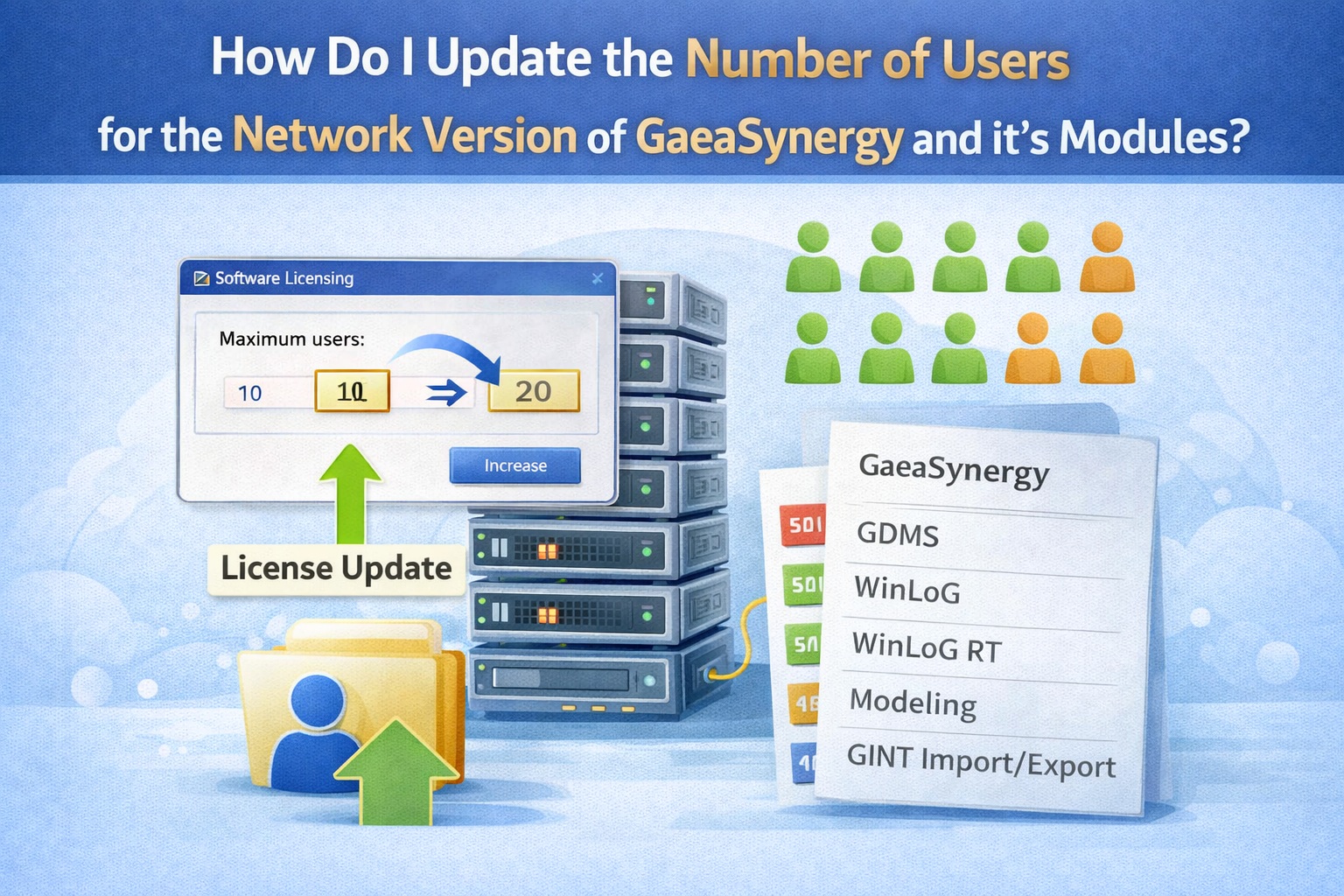
Managing a growing team requires a flexible software environment. For organizations using the network version of GaeaSynergy or one of it’s modules, licensing is based on concurrent usage, meaning the number of active users at any given time must be less than or equal to your licensed maximum.
If you have purchased additional seats and need to update your network license to reflect the new user count, follow this step-by-step guide to manage your licenses through the GaeaSynergy License Manager.
Step 1: Access the License Manager
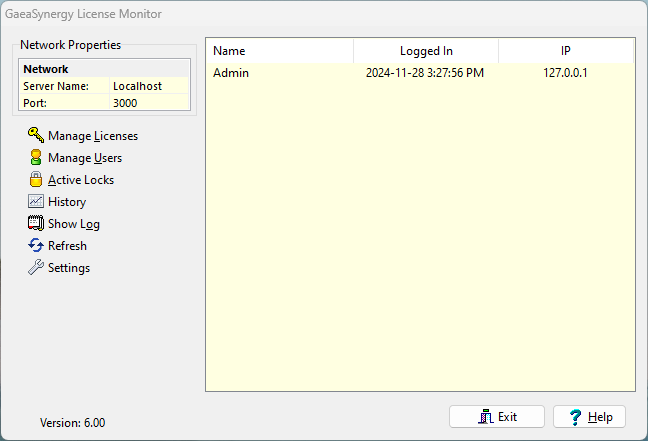
To begin the update, you must use the License Manager form, which is typically installed on the server hosting the Network License Monitor program.
- Open the Network License Monitor.
- Locate the Manage Licenses button on the main form and click it to open the detailed License Manager interface.
- On the left side of the form, you will see a list of installed modules. Select the specific module you wish to update (e.g., EDMS, WinLoG).
Step 2: Verify Current Licensing Status
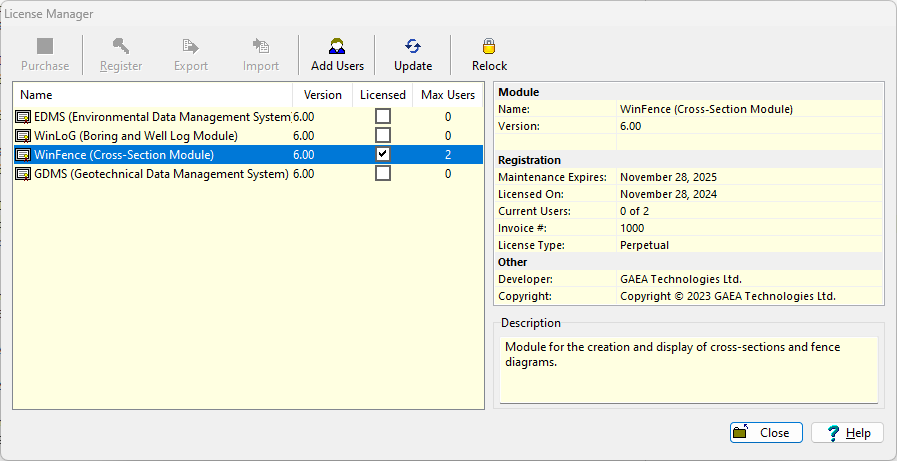
Before applying updates, confirm your current status. When a module is selected, the “Licensed” box should be checked, and the maximum number of users currently allowed will be displayed in the module details on the right.
Step 3: Initiate the License Update
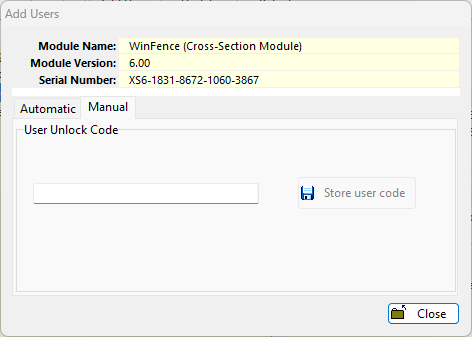
Once a module has been previously licensed, the Update button at the top of the form becomes enabled.
- Click the Update button for the selected module.
- If you have received new unlock codes from GAEA Technologies, you can enter them on the Manual tab.
- Click on Store user code to save the new registration.
Step 5: Configure Client Access (If Necessary)
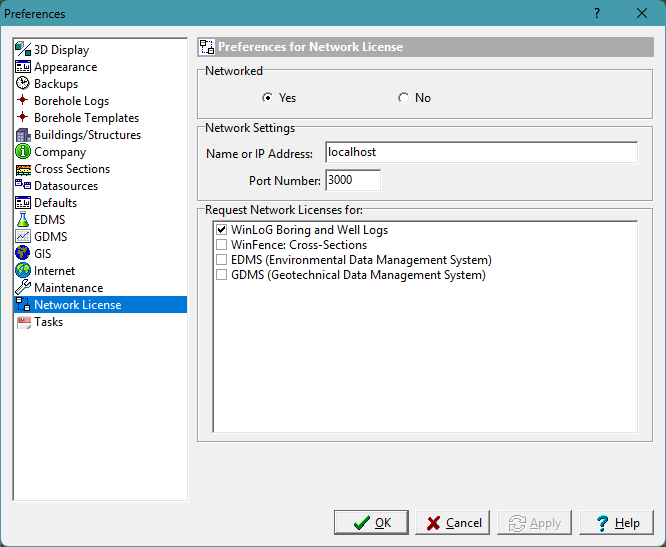
If you are adding new client computers to the network to utilize these additional seats:
- On the client machine, go to File > Preferences and select the Network License tab.
- Set Networked to “Yes” and ensure the server’s IP address or name is correct (the default port must be 3000).
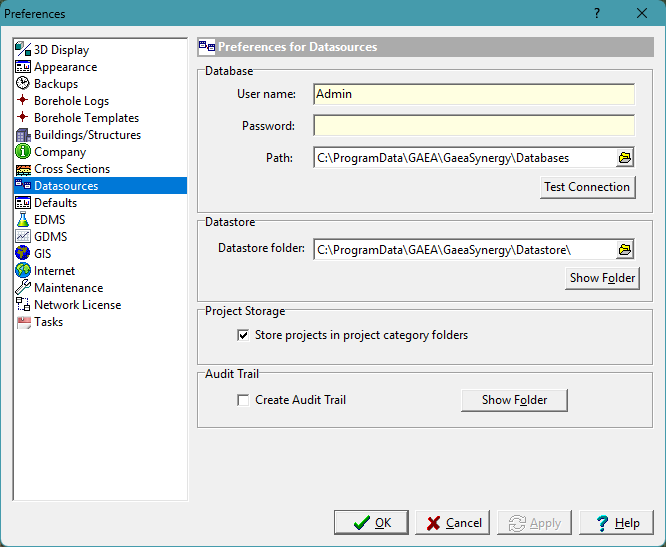
- Ensure the client is pointed to the correct Database and Datastore folders on the server via the Datasources tab in Preferences.
Summary
Updating the user count in GaeaSynergy involves using the Manage Licenses section of the Network License Monitor on your server. By clicking Update, you can apply new unlock codes provided by GAEA Technologies to increase your concurrent user limit. Always ensure your Network Monitor service is running and that client machines are correctly pointed to the server’s IP and port.