

Setting up GaeaSynergy and it’s modules on a network requires seamless communication between the client workstations and the server. If your clients cannot find the license, it’s often due to a blocked port or an incorrect server address. This guide covers how to identify your server and configure your firewall to allow traffic through the required port.
Step 1: Identify Your Server Name or IP Address
To connect a client to the network, you first need to know where the Network License Monitor and Service is hosted.
On the Server:
- Open a Command Prompt (type
cmdin the Start menu). - To find the Server Name, type
hostnameand press Enter. - To find the IP Address, type
ipconfigand look for the IPv4 Address under your active network connection.
Step 2: Open Port 3000 in Windows Firewall
GaeaSynergy uses Port 3000 for network communication. You must create Inbound and Outbound Rules on the server to allow this traffic.
- Open Firewall Settings: Click Start, type
WF.msc, and press Enter to open Windows Firewall with Advanced Security. - Create New Rule: Right-click Inbound Rules in the left pane and select New Rule….
- Rule Type: Select Port and click Next.
- Protocol and Ports: Select TCP and enter
3000in the Specific local ports box. - Action: Select Allow the connection and click Next.
- Profile: Ensure Domain, Private, and Public are all checked.
- Name: Name the rule “GaeaSynergy Port 3000” and click Finish.
Step 3: Configure Client Preferences
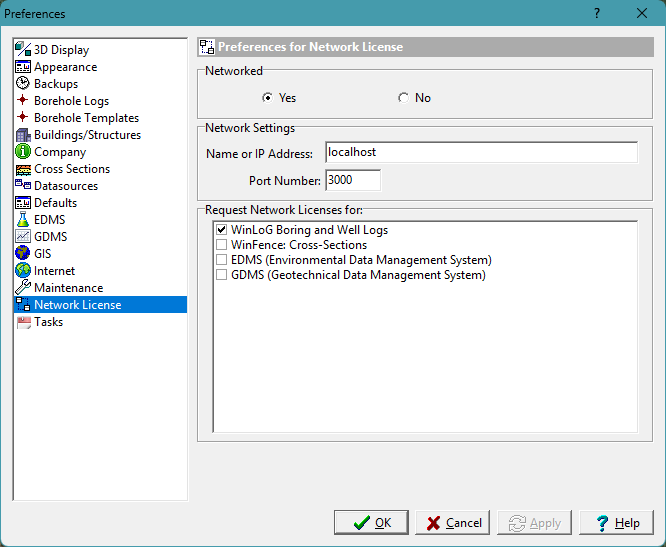
Once the port is open and you have the server’s IP, update your client settings:
- In GaeaSynergy, go to File > Preferences.
- Select the Network License tab.
- Set Networked to “Yes”.
- Enter the Server Name or IP Address and ensure the port is set to 3000.
Connection Troubleshooting Checklist
If a client workstation still cannot find the server after you have opened Port 3000, use this troubleshooting checklist to identify the remaining bottleneck.
1. Verify Physical & Network Layers
- Ping Test: On the client computer, open a Command Prompt and type
ping [Server IP Address]. If the request times out, the client cannot “see” the server at all on your network. - Hardware Check: Ensure both the server and client are connected to the same subnet and that all network cables or Wi-Fi connections are stable.
- Restart Services: Restart the GaeaSynergy Network License service on the server and the GaeaSynergy application on the client to clear any temporary communication glitches.
2. Check for Port Conflicts
- Port in Use: Occasionally, another application (like a web development server) might already be using Port 3000.
- Identify Conflicts: On the server, run
netstat -ano | findstr :3000in the Command Prompt to see if another process is active on that port. - Resolution: If a conflict exists, you may need to stop the competing process or consult GAEA Technologies support about changing the default port.
3. Advanced Firewall & Security
- Third-Party Antivirus: If you use software like Norton, McAfee, or ESET, it may have its own firewall that is still blocking Port 3000 regardless of your Windows Firewall settings.
- Outbound Rules: Ensure the client machine isn’t blocking outbound traffic on Port 3000.
- Rule Scope: Double-check that your “GaeaSynergy Port 3000” rule is applied to all profiles (Domain, Private, and Public).
4. Application Configuration
- User Account: Confirm that the user attempting to log in has a valid account already created in the Network License Monitor on the server.
- Pathing: Verify the Database and Datastore folders are correctly mapped to the server’s shared network path in File > Preferences > Datasources.
- IP vs. Hostname: If using the server name doesn’t work, try using the static IP address instead, as some DNS configurations may fail to resolve names correctly.
Summary
To resolve connectivity issues, use hostname or ipconfig on your server to find its identity, then create a Windows Firewall Inbound Rule for TCP Port 3000. Finally, update the Network License tab in your GaeaSynergy client preferences to point to the correct server address.