

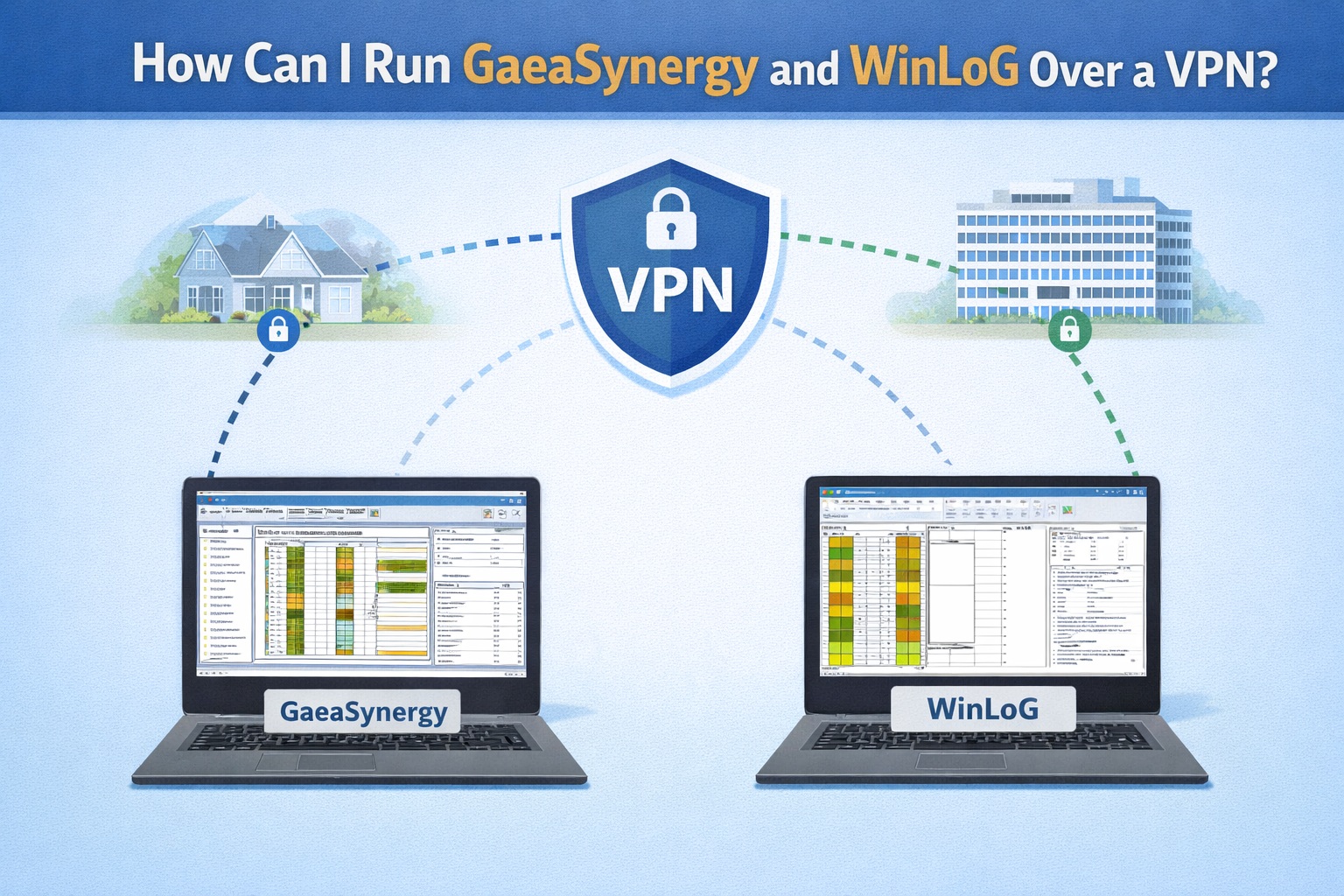
To install and configure the network versions of GAEA Technologies’ GaeaSynergy and WinLoG over a Virtual Private Network (VPN), you must ensure the client machine is properly connected to the corporate network and pointed to the correct server-side database and license manager.
Setting up GaeaSynergy and WinLoG for remote access involves three primary phases: establishing a secure VPN connection, configuring the network license, and mapping the data sources to the server.
1. Establish the VPN Connection
Before launching GAEA software, the remote computer must be part of the office network.
- Install the VPN Client: Use a supported client such as AnyConnect, GlobalProtect, or the built-in Windows VPN provider.
- Authentication: Sign in using your domain credentials. Some secure environments may require Multi-Factor Authentication (MFA) or certificates for a successful handshake.
- Verification: Once connected, ensure the connection icon shows “Connected” or green. You should be able to ping the server’s IP address or hostname.
2. Configure the Network License
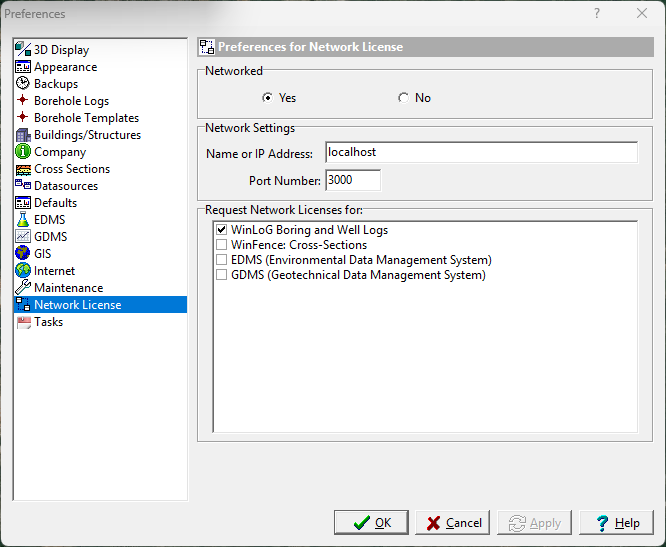
The network version requires a central License Manager to authorize modules.
- License Manager Setup: Ensure a user account is created in the network monitor program on the server before attempting to log in from a client.
- Enable Network Mode: On the client computer, go to File > Preferences and select the Network License tab.
- Server Identification: Set “Networked” to Yes and enter the server’s network name or IP address to fetch available licenses.
3. Map Database and Datastore Folders
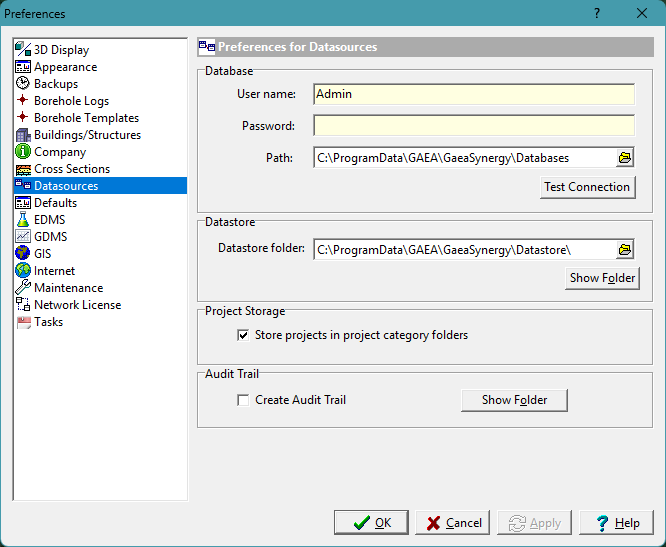
For WinLoG and GaeaSynergy to function, they must access the centralized “winlog.mdb” database and associated datastores.
- Administrator Access: You must run the program as an administrator to change data source settings.
- Path Configuration: Navigate to File > Preferences > Datasources.
- Server Paths: Change the database and datastore folders from the local
C:\drive to the appropriate server path (e.g., a mapped network drive or UNC path like\\ServerName\GAEA\database). - Service Requirements: The GaeaSynergy License Manager service must be running on the main network server to licensing.
Troubleshooting Common Issues
If you encounter errors while running GAEA software over a VPN, check the following:
- License Not Found: Ensure the server’s IP address is correctly entered in the Network License preferences. Verify that TCP ports used by the license manager (3000) are not blocked by the office firewall.
- Slow Database Performance: VPNs introduce latency. If the application is slow or times out, try increasing the FLEXLM_TIMEOUT environment variable on the client to give it more time to reach the server.
- Connection Failed: Confirm the VPN is active and that you can browse to the server folder in Windows File Explorer. If using a mapped drive (e.g.,
Z:\), ensure it is correctly mapped to the server path while the VPN is connected. - Authentication Errors: Double-check your VPN credentials and ensure your user account has been added to the GAEA Network Monitor program on the server.
Summary
To run GAEA Technologies software remotely, first establish a secure VPN connection to join the office network. Once connected, use the Preferences menu within the application to point the Network License and Datasources (such as the winlog.mdb file) to the central server’s IP or hostname. Ensure the GaeaSynergy License Manager service is active on the server to handle data exchange and notifications.