

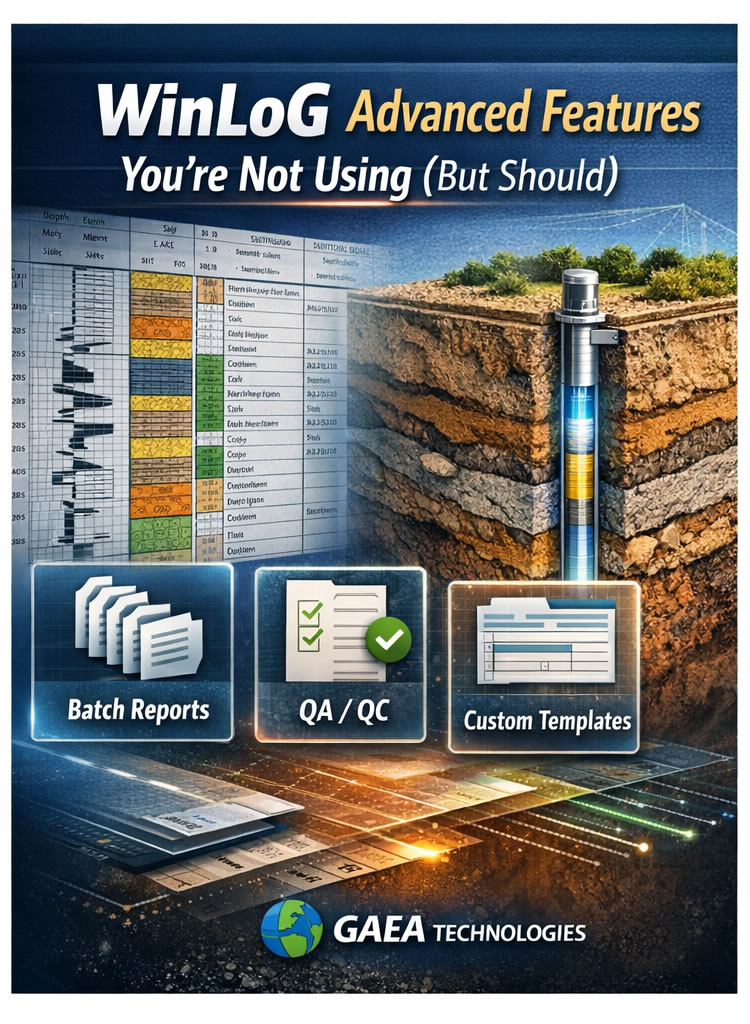
Most firms use only a fraction of their borehole logging software’s capabilities.
If you’re using WinLoG, you already know its core functionality: structured lithology logging, clean borehole reports, and standardized outputs. But beyond the basics, WinLoG includes advanced features that can dramatically improve workflow efficiency, reporting consistency, and QA/QC accuracy.
Here are the most underutilized capabilities that can transform how your team logs and reports subsurface data.
1. Custom Log Templates by Project Type
Many teams use a single standardized template across all projects.
However, WinLoG allows you to create project-specific templates for:
- Environmental monitoring wells
- Geotechnical boreholes
- Oil & gas wells
- Geothermal investigations
- Specialized sampling programs
By customizing:
- Header layouts
- Lithology patterns
- Lab data sections
- Groundwater tracking
- Remarks fields
You can reduce manual edits and ensure consistent deliverables across teams.
Why it matters:
Template standardization reduces reporting time and eliminates formatting inconsistencies between offices or project managers.
2. Advanced Lithology Pattern Control
Lithology presentation is more than aesthetics — it affects clarity and interpretability.
WinLoG allows:
- Custom pattern libraries
- Region-specific lithology standards
- Corporate branding alignment
- Controlled vocabulary enforcement
Standardized lithology descriptions improve long-term data usability — especially when preparing datasets for digital analysis or future AI-assisted modeling.
Clean, consistent patterns also enhance cross-section clarity when integrated with tools like WinFence for stratigraphic correlation and visualization.
3. Batch Report Generation
If your team generates logs one-by-one, you’re likely losing valuable time.
WinLoG supports batch report processing, allowing you to:
- Generate multiple borehole logs simultaneously
- Apply standardized formatting rules
- Export to PDF or other formats in bulk
- Maintain consistent naming conventions
For large projects with 50+ boreholes, this can save hours per deliverable cycle.
Pro Tip: Combine batch processing with predefined template settings for maximum efficiency.
4. Integrated QA/QC Validation Rules
Manual error detection is one of the biggest hidden costs in borehole logging.
WinLoG includes validation features that help identify:
- Missing depth intervals
- Overlapping sample zones
- Inconsistent soil classifications
- Illogical groundwater entries
- Incorrect SPT value formatting
By catching errors at entry, you reduce downstream rework during reporting or review.
When synchronized with centralized platforms like GDMS, validated borehole data becomes part of a structured, reusable database — not just a static report.
5. Field-to-Office Synchronization
If your team uses WinLoG Field Assistant, real-time or near-real-time data transfer minimizes transcription errors and accelerates report preparation.
Advantages include:
- Immediate office visibility
- Early QA/QC checks
- Reduced manual re-entry
- Faster turnaround for clients
This integration transforms logging from a linear process (field → transcription → office) into a synchronized digital workflow.
6. Controlled Vocabulary & Standardization Tools
Over time, inconsistent terminology can degrade data quality:
“Sand and gravel”
“Gravelly sand”
“Sand w/ gravel”
WinLoG allows administrators to enforce standardized terminology, improving:
- Data integrity
- Searchability
- Cross-project comparison
- Long-term database value
Structured data is especially important for firms building historical archives for trend analysis or predictive modeling.
7. Export & Interoperability Features
Many users overlook advanced export capabilities.
WinLoG supports structured data export that enables:
- Integration with GIS systems
- Cross-section modeling in WinFence
- Central storage in GDMS
- Data reuse across projects
Instead of treating logs as final documents, you can treat them as part of a broader digital ecosystem.
8. Workflow Optimization Tips for Power Users
If you want to maximize efficiency, consider:
✔ Creating default project templates
✔ Automating repetitive fields
✔ Training staff on validation tools
✔ Standardizing pattern libraries company-wide
✔ Establishing naming conventions for bulk exports
Small configuration improvements compound over time.
Why Advanced Features Matter More Than Ever
Geotechnical and environmental projects are becoming more data-intensive. Clients expect:
- Faster turnaround
- Fewer revisions
- Greater transparency
- Digital deliverables
- Reusable data
Firms that leverage advanced WinLoG functionality move from simple log production to fully optimized digital workflows.
When combined with tools like WinFence for visualization and GDMS for centralized data management, WinLoG becomes more than logging software — it becomes part of a structured engineering data ecosystem.
Final Thoughts
If your team is only using WinLoG for basic borehole reporting, you may be leaving efficiency gains on the table.
Advanced template configuration, validation rules, batch processing, and standardized workflows can:
- Reduce report preparation time
- Improve data consistency
- Enhance QA/QC
- Increase long-term data value
Sometimes the most powerful productivity improvements don’t require new software — just better use of the tools you already have.
Related Articles
- Creating a Borehole Log from Field Data Using WinLoG and WinLoG Field Assistant
- Using Templates for Faster Borehole Logging: Standardizing Geotechnical Workflows in WinLoG
- Editing and Structuring Lithology Data: Best Practices for Accurate Borehole Logs and Geoscience Workflows
- How Do I Use Calculated Graph Columns in WinLoG?
- How Do I Create and Manage Lithologic Libraries in WinLoG?
- How Do I Create and Enter Tables in WinLoG Templates and Logs?
- How Do I Upgrade a Single User version to WinLoG Version 6?
- Moving to WinLoG v6: Seamless Data Migration for Your Borehole History
- How to use Lithology Descriptors to Standardize Logs
- How to use Sample Descriptors to Standardize Logs
- How to add Geophysical Data to a Well Log in WinLoG
- How to Quickly Enter Standardized Lithologic Layers in WinLoG
- How to Create a Well Diagram in WinLoG
- How to Import Boring and Well Data from Excel in WinLoG
- How to Import Multiple Boring and Well Locations from Excel to WinLoG
- Why is my WinLoG header data not displaying on the log?
- Why do some of the WinLoG headers in my template not appear when entering boring data?