

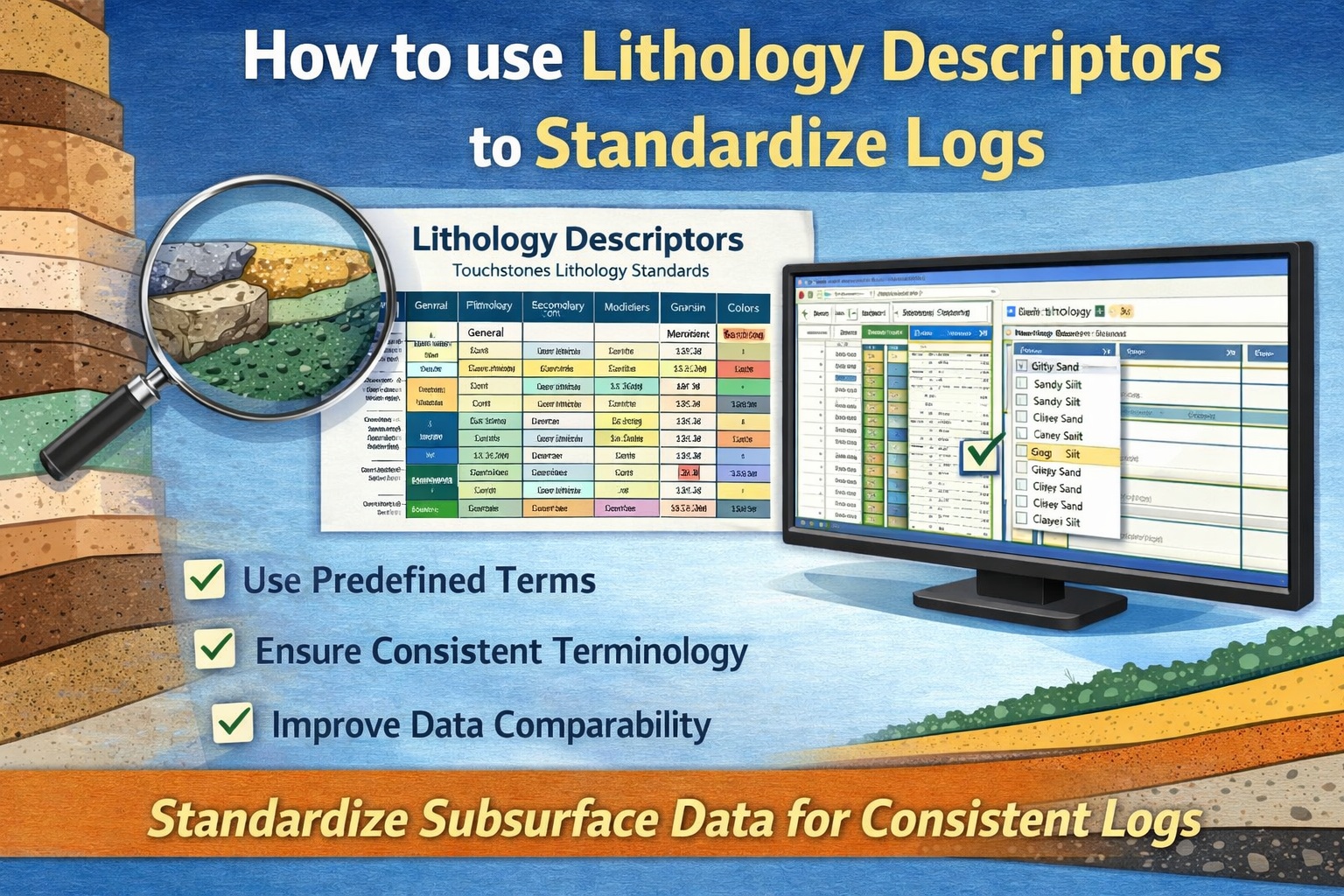
When entering the borehole lithology in WinLoG, lithology descriptors can be used to select lithology descriptions from predefined lists. There are descriptors for lithology, color, odour, porosity, and consistency. By using descriptors, lithology descriptions can be standardized for logs.
Setting up the Template
To see these descriptors on the log the show descriptors option on the template’s lithology column must be selected. To do this open the template for editing and then select Columns in the Edit menu. On the Columns form, click on the Customize button for the Lithology column.
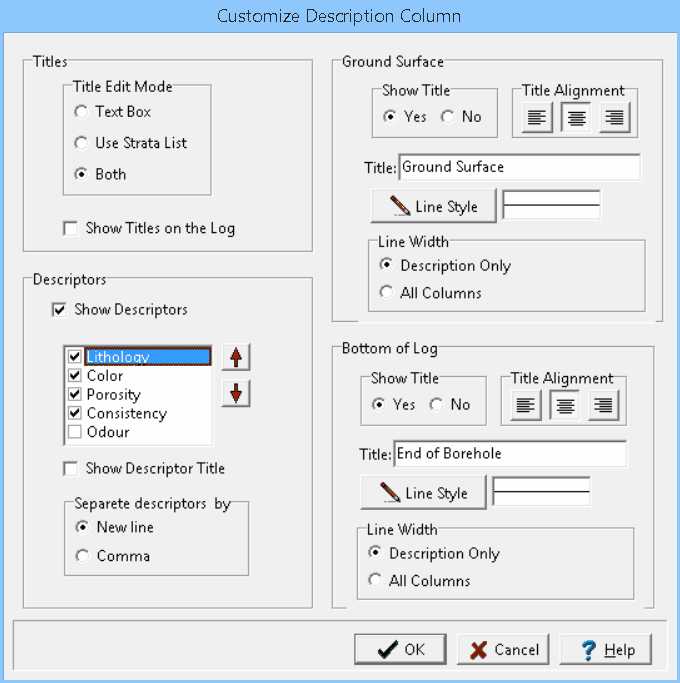
Check the Show Descriptors box and then select which descriptors to show in the list. The arrows next to the list can be used to adjust the order the descriptors are shown on the log. The type of descriptor can be shown with the description by checking Show Description Title (for example, “Lithology: Loam”). The descriptors on the log can be separated by commas or on separate lines in the Lithology column.
Editing Standardized Lithology Descriptors
Lithology descriptors are populated when WinLoG is installed and can be edited by going to Tools then Lists then Samples and then selecting the descriptor (for example Soil Types which is used for the lithology descriptor).

A list of descriptions is shown on the form. Descriptions can be added and removed using the buttons at the top of the form. To edit a description, select it in the list and then click on it again to edit it.
Using Standardized Lithology Descriptors
To edit the lithology on a log click on the lithology column or select Lithology from the Edit menu.
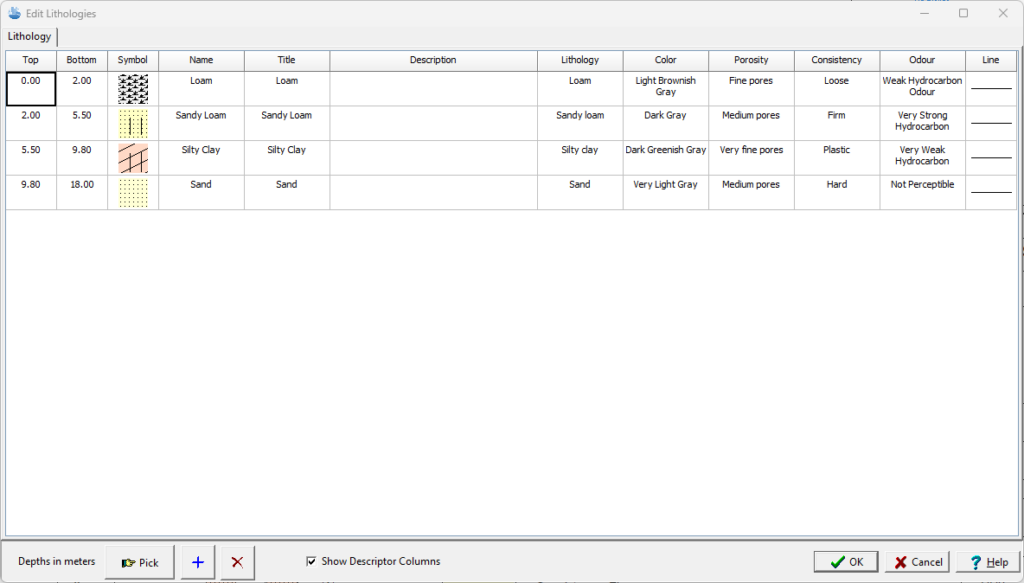
The Edit Lithologies form is used to edit the data for each lithologic layer, that is displayed in lithology column of the log. When a descriptor column is selected on the form a list of predefined descriptions is displayed. The description for this layer can be selected from this list. Using these predefined lists minimizes the amount of data entry and standardizes the sample descriptions.
Related Articles
- Creating a Borehole Log from Field Data Using WinLoG and WinLoG Field Assistant
- Using Templates for Faster Borehole Logging: Standardizing Geotechnical Workflows in WinLoG
- Editing and Structuring Lithology Data: Best Practices for Accurate Borehole Logs and Geoscience Workflows
- WinLoG Advanced Features You’re Not Using (But Should)
- How Do I Create and Manage Lithologic Libraries in WinLoG?
- How Do I Create and Enter Tables in WinLoG Templates and Logs?
- How Do I Upgrade a Single User version to WinLoG Version 6?
- Moving to WinLoG v6: Seamless Data Migration for Your Borehole History
- How to use Sample Descriptors to Standardize Logs
- How to add Geophysical Data to a Well Log in WinLoG
- How to Quickly Enter Standardized Lithologic Layers in WinLoG
- How to Create a Well Diagram in WinLoG
- How to Import Boring and Well Data from Excel in WinLoG
- How to Import Multiple Boring and Well Locations from Excel to WinLoG
- Why is my WinLoG header data not displaying on the log?
- Why do some of the WinLoG headers in my template not appear when entering boring data?