

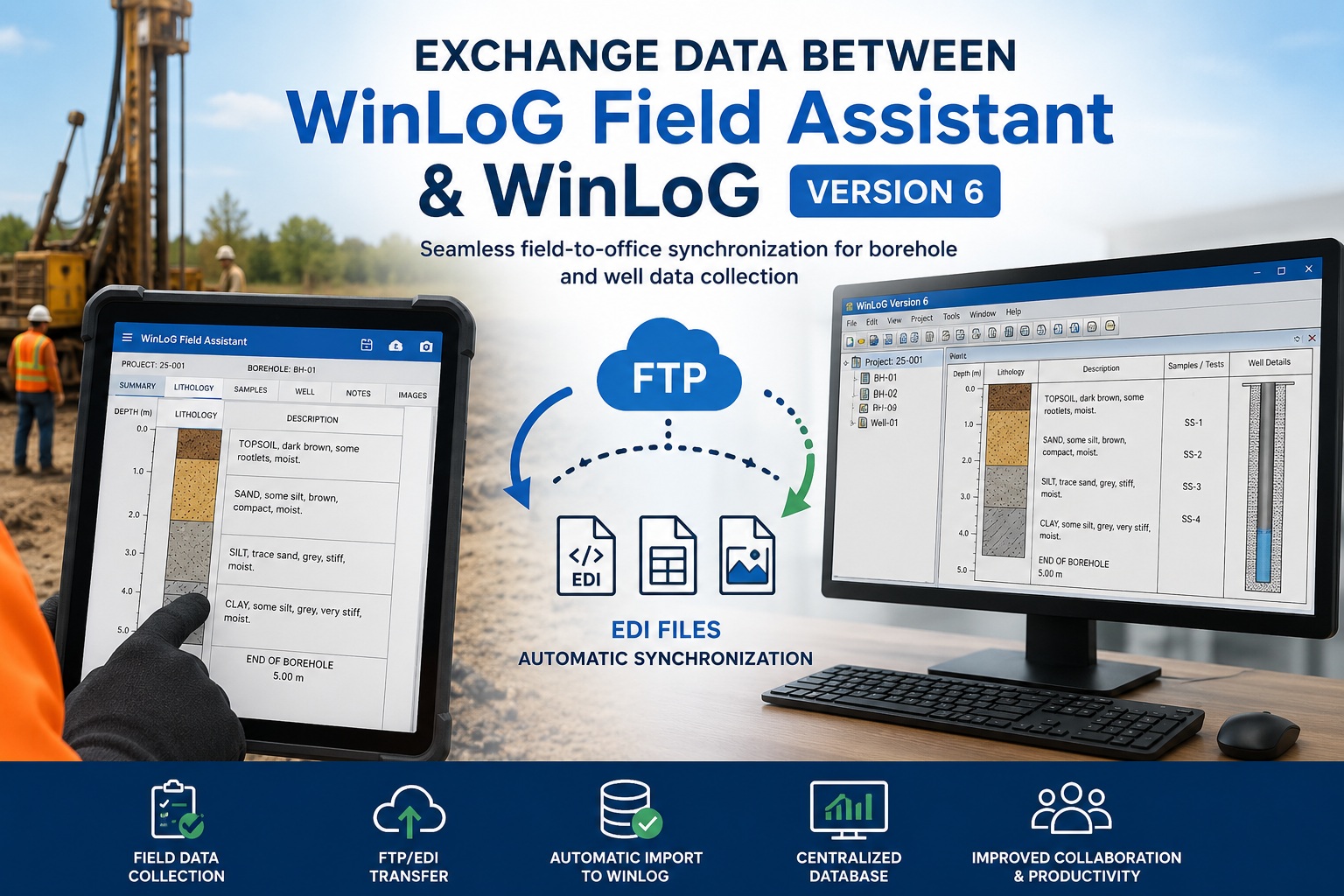
Field data collection is one of the most critical parts of any geotechnical or environmental investigation. With WinLoG Field Assistant and WinLoG Version 6, field crews can collect borehole and well data directly on Android tablets and seamlessly transfer the information back to the office for reporting, analysis, and long-term storage.
WinLoG Field Assistant uses Electronic Data Interchange (EDI) files and FTP-based synchronization to exchange projects, boreholes, templates, lithology libraries, lookup lists, and images with the WinLoG/GaeaSynergy network.
What You Need
Before exchanging data between WinLoG Field Assistant and WinLoG Version 6, make sure you have:
- WinLoG Version 6 network installation
- GaeaSynergy Network Data Manager service running
- WinLoG Field Assistant installed on an Android tablet
- Access to an FTP site
- User account configured in both systems
- Internet connection for synchronization
According to the user guide, the GaeaSynergy Network Data Manager service automatically downloads uploaded field data and merges it into the main WinLoG database.
How the Data Exchange Works
The workflow consists of three major stages:
- Office Planning in WinLoG
- Field Data Collection in WinLoG Field Assistant
- Automatic Synchronization Back to WinLoG
The system supports exchanging:
- Projects
- Boreholes
- Templates
- Lithology libraries
- Lithology macros
- Lookup lists
- Images
The guide explains that all transfers occur through EDI files using an FTP site.
Step 1 – Configure the FTP Site
An FTP site is required for importing and exporting data between WinLoG and WinLoG Field Assistant.
Required FTP Folder Structure
Create the following structure on the FTP server:
WinLoG_Data
│
├── Imports
├── Bitmaps
├── LithLibraries
├── SampleSymbols
└── Users
Each user will automatically receive a folder inside the Users directory after uploading data.
Step 2 – Configure File Transfer Settings in WinLoG Field Assistant
On the Android tablet:
Open:
Settings → File TransferEnter:
- FTP Host
- FTP Port
- Username
- Password
The user guide states these settings are required for importing/exporting data and backing up databases.
Step 3 – Configure User Information
Open:
Account SettingsEnter:
- Username
- Phone number
- Company information
- Password
The username should match the personnel username used in GaeaSynergy/WinLoG.
Step 4 – Send Projects from WinLoG Version 6 to the Tablet
Projects can be created in WinLoG and then sent to field personnel through the FTP site.
In WinLoG Version 6
Project managers can:
- Create projects
- Define proposed boreholes
- Assign tasks
- Send notifications to field staff
The project is uploaded to the FTP site using the GaeaSynergy Network Data Manager.
Step 5 – Import Projects into WinLoG Field Assistant
On the tablet:
Open:
Import → ProjectsThen:
- Tap Retrieve List
- Select the project(s)
- Tap Import
Imported projects can include:
- Project location
- Borehole defaults
- Proposed boreholes
Duplicate projects can be:
- Skipped
- Overwritten
- Merged
Step 6 – Import Templates and Libraries
To ensure field logs match office reporting standards, import templates and libraries from WinLoG.
Import Available Resources
Templates
Import → TemplatesLithology Libraries
Import → Lithology LibrariesLithology Macros
Import → Lithology MacrosLookup Lists
Import → ListsThe documentation explains that these resources are uploaded from WinLoG/GaeaSynergy and downloaded into WinLoG Field Assistant through the FTP site.
Step 7 – Collect Borehole Data in the Field
Field staff can now:
- Create boreholes
- Record lithology
- Enter sample data
- Add well construction details
- Capture images
- Preview and print logs
Templates determine the data fields and layout used during collection.
Key Features Available in the Field
GPS-Based Borehole Locations
WinLoG Field Assistant supports georeferenced projects using tablet GPS coordinates.
Lithology Macros
Quickly populate:
- Layer names
- Descriptions
- Symbols
Image Capture
Attach borehole and project photos directly from the tablet camera.
Log Preview and Printing
Preview and print logs directly from the Android device.
Step 8 – Export Data Back to WinLoG Version 6
After field collection is complete:
Open:
ExportYou can export:
- Entire projects
- Individual boreholes
- Images
Exporting Entire Projects
Export → ProjectsThis exports:
- Boreholes
- Well data
- Images
Duplicate handling options include:
- Skip
- Overwrite
- Merge
Exporting Individual Boreholes
Export → BoreholesThis allows selective synchronization of field data.
If the project does not already exist in WinLoG, it will automatically be created during import.
Exporting Images
Export → ImagesImages attached to projects and boreholes are uploaded and automatically linked inside WinLoG/GaeaSynergy.
Step 9 – Automatic Import into WinLoG Version 6
Once uploaded:
- The GaeaSynergy Network Data Manager monitors the FTP site
- Downloads the EDI files
- Merges the data into the central WinLoG database
This creates a near real-time synchronization workflow between the field and office.
Benefits of Using WinLoG Field Assistant with WinLoG Version 6
Using the integrated workflow provides several advantages:
- Faster field-to-office data transfer
- Reduced manual data entry
- Standardized logging procedures
- Improved QA/QC
- Automatic synchronization
- Centralized database management
- Mobile borehole logging
- Real-time project collaboration
The user guide specifically highlights improved standardization, reduced reporting effort, and secure centralized data storage as key benefits.
Recommended Workflow
Office Team
- Create projects in WinLoG
- Upload templates and libraries
- Assign field tasks
Field Team
- Import projects
- Collect borehole data
- Capture photos
- Export completed logs
Data Management
- Automatic synchronization through the Network Data Manager
- Centralized database updates
- Immediate availability for reporting and analysis
Final Thoughts
WinLoG Field Assistant and WinLoG Version 6 provide a complete mobile-to-office workflow for geotechnical and environmental data management. By combining Android-based field collection with automated synchronization into the WinLoG network database, organizations can significantly improve efficiency, consistency, and data quality across projects.
The FTP and EDI-based architecture allows teams to exchange:
- Projects
- Boreholes
- Templates
- Libraries
- Images
- Lookup data
with minimal manual intervention while maintaining standardized reporting throughout the organization.