

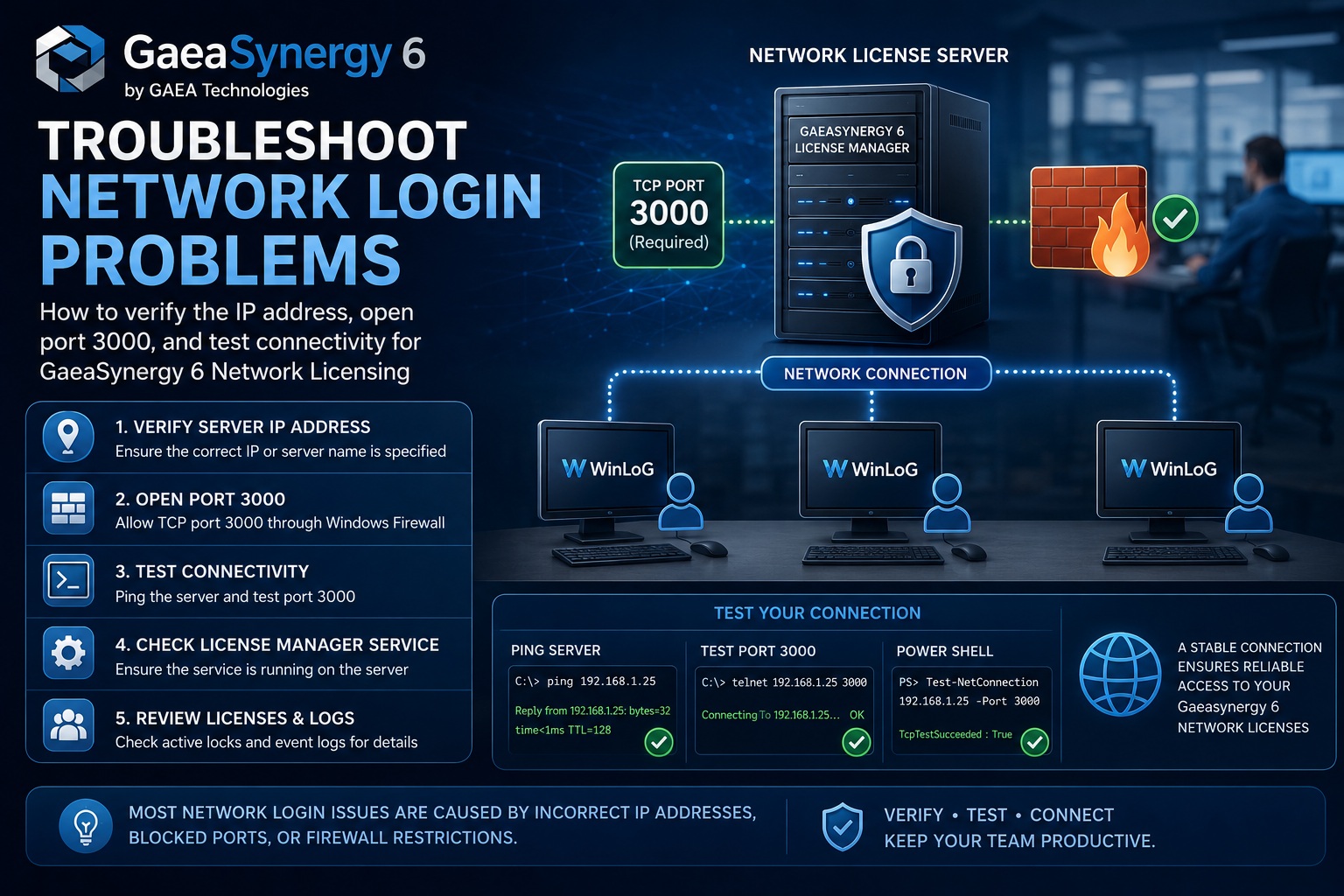
When users are unable to log into a GaeaSynergy 6 network installation, the problem is usually related to one of the following:
- Incorrect server name or IP address
- Network port 3000 blocked by a firewall
- The License Manager service not running
- Client computers unable to communicate with the server
- Incorrect network license settings on the client
This guide explains how to verify the server connection, test the IP address, confirm the network port is open, and troubleshoot common network login problems for GaeaSynergy 6.
Understanding How GaeaSynergy Network Licensing Works
GaeaSynergy network licensing uses a centralized License Manager service running on the server. Client computers connect to the server over the network using:
- A server name or IP address
- TCP Port 3000
The client communicates with the License Manager service to:
- Authenticate users
- Request concurrent licenses
- Open network projects and databases
The GaeaSynergy documentation specifies that the network port should normally be set to 3000.
If the client cannot reach the server or the port is blocked, users will be unable to log in.
Step 1 – Verify the License Manager Service is Running
Before troubleshooting the network connection, first confirm the GaeaSynergy License Manager service is running on the server.
How to Check the Service
On the server computer:
- Open:
- Control Panel
- Administrative Tools
- Services
- Locate:
- GaeaSynergy 6 License Manager
- Verify the status is:
- Running
If the service is stopped:
- Right-click the service
- Select:
- Start
The service should normally start automatically when Windows starts.
Step 2 – Verify the Correct Server Name or IP Address
Client computers must point to the correct network server.
Where to Configure the Network Address
On the client computer:
- Open GaeaSynergy
- Select:
- File > Preferences
- Open:
- Network License
- Verify:
- Networked = Yes
- Correct server name or IP address
- Port = 3000
Step 3 – Find the Correct Server IP Address
If users cannot connect using the server name, try using the server IP address instead.
How to Find the Server IP Address
On the server:
- Open Command Prompt
- Type:
ipconfig- Press Enter
Look for:
IPv4 AddressExample:
IPv4 Address . . . . . . . . . . : 192.168.1.25This is the IP address clients should use in the GaeaSynergy Network License settings.
Step 4 – Test Network Connectivity Using Ping
After obtaining the server IP address, test whether the client can reach the server.
Test the Server Connection
On the client computer:
- Open Command Prompt
- Type:
ping 192.168.1.25(Replace the IP address with your actual server IP.)
If successful, you should receive replies such as:
Reply from 192.168.1.25: bytes=32 time<1ms TTL=128What If Ping Fails?
If you receive:
Request timed outor
Destination host unreachablethen:
- The server may be offline
- The client may be on the wrong network
- Windows Firewall may be blocking traffic
- Network switches or VPN settings may be preventing communication
Before proceeding, confirm:
- Both computers are on the same network
- VPN connections are working correctly
- Firewalls allow communication
Step 5 – Verify Port 3000 is Open
Even if the client can ping the server, the required license port may still be blocked.
GaeaSynergy network licensing normally communicates using TCP Port 3000.
Method 1 – Test the Port Using Telnet
Enable Telnet (If Needed)
On Windows:
- Open:
- Control Panel
- Programs and Features
- Turn Windows Features On or Off
- Enable:
- Telnet Client
Test the Port
On the client computer:
telnet 192.168.1.25 3000If the connection succeeds:
- The screen will go blank
- This means the port is open
If you receive an error such as:
Could not open connectionthen Port 3000 is blocked or the service is not listening.
Method 2 – Test the Port Using PowerShell
Modern versions of Windows can test ports using PowerShell.
On the client:
Test-NetConnection 192.168.1.25 -Port 3000If successful, you should see:
TcpTestSucceeded : TrueIf it says:
TcpTestSucceeded : Falsethen the client cannot reach the GaeaSynergy License Manager service.
Step 6 – Open Port 3000 in Windows Firewall
If the port test fails, Windows Firewall may be blocking the connection.
Open Port 3000 on the Server
On the server:
- Open:
- Windows Defender Firewall
- Advanced Settings
- Select:
- Inbound Rules
- Click:
- New Rule
- Choose:
- Port
- Select:
- TCP
- Enter:
- 3000
- Select:
- Allow the connection
- Apply the rule to:
- Domain
- Private
- Name the rule:
- GaeaSynergy License Manager
Repeat the same process for Outbound Rules if required by your network policy.
Step 7 – Verify the License Server is Listening on Port 3000
On the server computer:
- Open Command Prompt
- Run:
netstat -an | find "3000"You should see something similar to:
TCP 0.0.0.0:3000 LISTENINGIf nothing appears:
- The License Manager service may not be running
- Another application may be using the port
- Firewall or antivirus software may be interfering
Step 8 – Verify Client License Settings
Sometimes the connection succeeds but the client is configured incorrectly.
On the client computer verify:
- Networked = Yes
- Correct server name or IP
- Port = 3000
- Appropriate modules selected
If the settings are changed:
- Click OK
- Restart GaeaSynergy
Step 9 – Check Active Locks and Logs
The License Monitor includes tools to help diagnose login problems.
Active Locks
The Active Locks window displays:
- Current users
- Active licenses
- Machine locations
If all licenses are already in use, new users may be denied access.
Review the Event Log
The Event Viewer in the License Monitor records:
- Login attempts
- Connection errors
- License requests
- Failed authentication events
Reviewing these logs often identifies the exact reason users cannot connect.
Common Causes of Network Login Problems
| Problem | Possible Cause |
|---|---|
| Cannot ping server | Network connectivity issue |
| Ping works but login fails | Port 3000 blocked |
| Port test fails | Firewall or service issue |
| Login window appears repeatedly | Incorrect IP or hostname |
| User denied access | No available concurrent licenses |
| Users intermittently disconnect | VPN or unstable network |
| Server name fails but IP works | DNS resolution issue |
Best Practices for Reliable Network Licensing
To minimize connection issues:
- Use a static IP address for the server
- Keep Port 3000 open internally
- Avoid changing the server hostname
- Exclude the License Manager from antivirus scanning
- Regularly monitor Active Locks and logs
- Ensure the License Manager service starts automatically
Final Thoughts
Most GaeaSynergy network login issues can be resolved by verifying:
- The License Manager service is running
- The server IP address is correct
- Port 3000 is open
- The client can reach the server
- The network license settings are configured properly
Using tools such as ping, telnet, Test-NetConnection, and netstat can quickly identify where communication is failing and help restore user access to the network license server.