

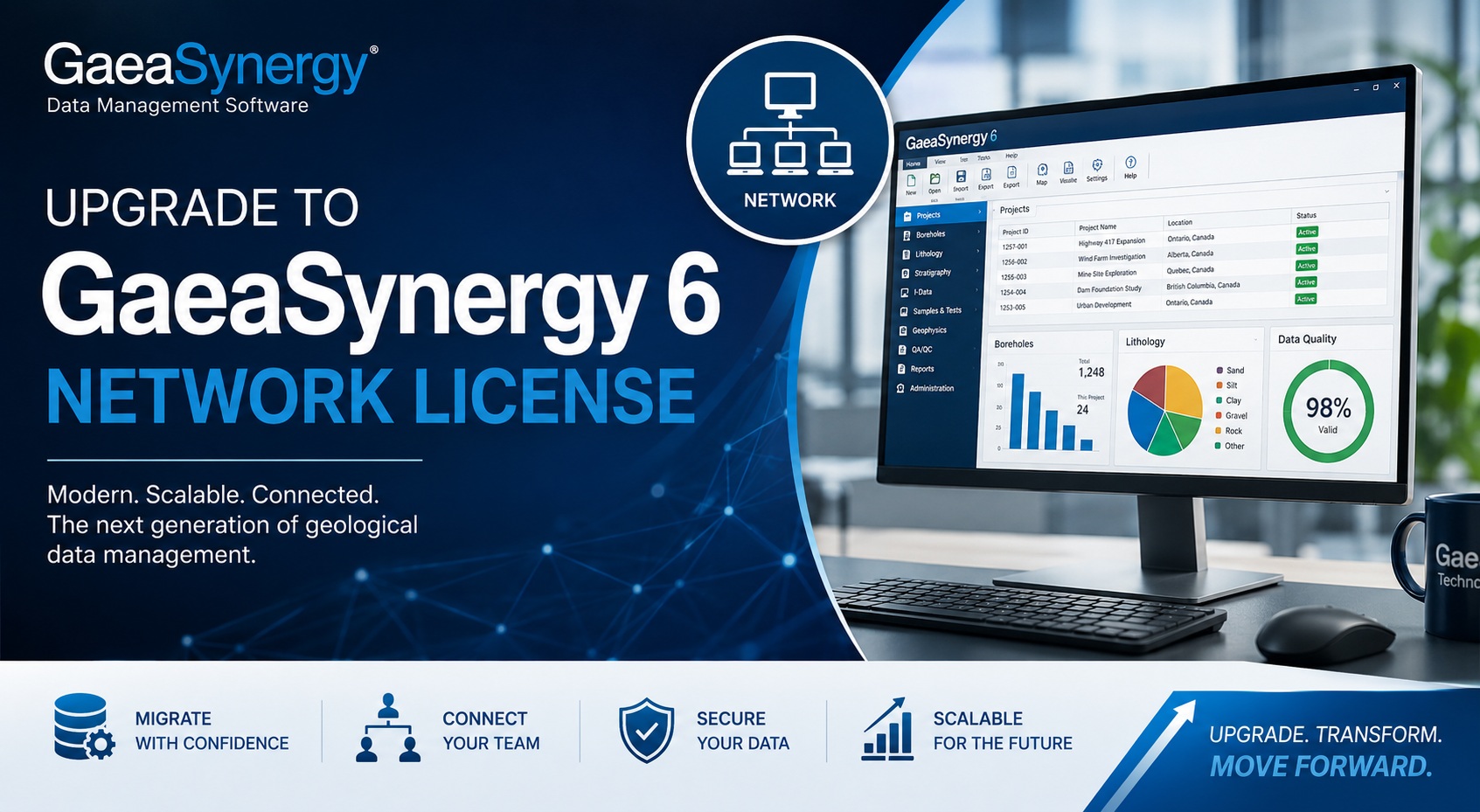
GaeaSynergy 6 introduces a completely modernized licensing and network management system designed to improve performance, simplify administration, and support concurrent network licensing across teams and organizations.
If you are currently using GaeaSynergy Version 4 or Version 5, this guide explains how to safely upgrade your data and move to the new GaeaSynergy 6 network license environment.
Why Upgrade to GaeaSynergy 6?
GaeaSynergy 6 includes major improvements for environmental, geotechnical, mining, petroleum, and GIS workflows, including:
- Modernized network licensing
- Concurrent user management
- Improved project and datastore management
- Enhanced GIS and visualization tools
- Better performance and scalability
- Centralized license monitoring
- Expanded task and project management
- Improved database architecture
The Version 6 licensing system is managed through the GaeaSynergy 6 License Manager and License Monitor utilities.
Important Upgrade Information
Before upgrading, it is important to understand that:
- Version 4/5 and Version 6 do NOT use the same databases or directories
- Version 6 uses a new default data structure
- Existing Version 4 data must be upgraded before using it in Version 6
- The upgrade process only needs to be performed once
Default Data Locations
Version 4
C:\ProgramData\GAEA\GaeaSynergy4/5Version 6
C:\ProgramData\GAEA\GaeaSynergyThe upgrade process copies and converts the existing data into the new Version 6 structure while leaving the original Version 4 data intact.
After the upgrade, it is not recommended to continue using Version 4 because any new data created in Version 4 will not appear in Version 6.
Downloads
GaeaSynergy 6
www.gaeatech.com/public/GaeaSynergy6_Setup.exeGaeaSynergy 6 License Manager
www.gaeatech.com/public/GaeaSynergy6_License_Manager_Setup.exeDefault Login
After installation, the default local login is:
Username: Admin
Password: admin
Understanding the New Network License System
GaeaSynergy 6 supports:
- Single-user licensing
- Network concurrent licensing
- Hybrid licensing environments
The network licensing system uses two components:
1. GaeaSynergy 6 License Manager Service
This Windows service handles:
- User authentication
- Concurrent license allocation
- License validation
- Network communication
The service itself runs in the background without a user interface.
2. GaeaSynergy License Monitor
The License Monitor provides administrators with tools to:
- Add and remove users
- Monitor active licenses
- View active locks
- Review usage history
- Audit log activity
- Manage purchased licenses
The dashboard provides a centralized overview of all network license activity.
Recommended Installation Architecture
For best performance and reliability:
Server Installation
Install the following on the server:
- Full GaeaSynergy 6 installation
- GaeaSynergy 6 License Manager
- Databases
- Datastore folders
The server installation contains the shared databases required by all users.
Client Installation
Install the client version on each workstation.
Client computers connect to:
- Shared databases
- Shared datastore
- Network license service
Critical Network Setup Requirements
The server folders containing the databases and datastore must:
- Be shared on the network
- Have Windows permissions set to:
Full Controlfor all GaeaSynergy users.
Improper permissions are one of the most common causes of connection and licensing issues.
Step-by-Step Upgrade Process
Step 1 — Install GaeaSynergy 6
Install Version 6 on the same computer currently running Version 4 or 5.
Do NOT uninstall the older version yet.
Step 2 — Install and Configure the License Manager
Install the network license manager service on your server:
GaeaSynergy6_License_Manager_Setup.exeThe installation automatically:
- Installs the License Manager application
- Installs the Windows service
- Creates Start Menu shortcuts
Step 3 — Start the License Service
The service normally starts automatically after reboot.
To manually start it:
- Open Windows Services
- Locate:
GaeaSynergy 6 License Manager - Click Start
Step 4 — License GaeaSynergy 6
Use the License Monitor utility to:
- Purchase licenses
- Register licenses
- Add additional users
- Import registration codes
The License Manager supports both:
- Perpetual licenses
- Subscription licenses
Step 5 — Upgrade Existing Data
Launch GaeaSynergy 6 and perform the data upgrade:
Tools > Upgrade > From GaeaSynergy Version 4/5The upgrade process:
- Copies existing data
- Converts databases
- Adds new Version 6 tables
- Preserves original Version 4/5 data
The upgrade should be completed before creating new Version 6 projects.
The full GaeaSynergy User Guide also includes dedicated sections for importing projects from Version 4 and Version 5.
Step 6 — Configure Client Workstations
On each client computer:
- Install GaeaSynergy 6
- Open:
File > Preferences - Configure:
- Database folder
- Datastore folder
- Network License settings
Under the Network License tab:
- Set:
Networked = Yes - Enter the server name or IP address
- Set the port number to:
3000
The port number for the license manager should always be 3000.
Important Notes
Do NOT Run Version 4/5 and Version 6 Services Together
After testing and validating Version 6:
- Remove the old Version 4 network service
- Only run one licensing service at a time
Running both services simultaneously can create conflicts.
Avoid Overwriting Shared Databases
When installing client machines:
- Do NOT reinstall databases locally
- Always point clients to the shared server datastore
This prevents accidental overwriting of production data.
Monitoring and Administration
The new License Monitor dashboard allows administrators to:
- View license utilization in real time
- Monitor active users
- Identify unused licenses
- Track usage history
- Review audit logs
- Improve license allocation efficiency
Final Recommendations
Before deploying GaeaSynergy 6 organization-wide:
- Test the upgrade on a staging machine
- Verify all projects and data
- Confirm network permissions
- Validate client connectivity
- Train users on the new licensing workflow
Once verified, the Version 6 platform provides a much more scalable and enterprise-ready environment for managing geotechnical, environmental, GIS, and subsurface data.
Need Assistance?
For technical support or licensing assistance:
support@gaeatech.comFor sales inquiries:
sales@gaeatech.comAdditional documentation is available in the official GaeaSynergy User Guide and License Manager Guide.