

Precision in subsurface modeling is the hallmark of professional geological reporting. In WinFence, effectively managing how your layers, faults, and intrusions appear and connect is critical for accuracy. Whether you are manually refining an automated cross-section or building one from scratch, mastering the editing toolset is your first step toward high-resolution visualization.
Strata Styles
Strata styles control the visual “look” of your cross-section, including lithologic symbols, colors, and boundary lines.
- Customizing Symbols: You can choose from over 100 built-in lithologic symbols or create your own to represent specific rock and soil types.
- Color & Size Adjustments: Within the strata properties, you can specify foreground and background colors and adjust the symbol scale to fit your section’s dimensions.
- Legend Control: The order and description of strata can be adjusted for each individual cross-section, ensuring your legend perfectly matches your visual data.
- Curvature Fitting: You can choose to connect your segment points with straight lines or use a curve fitting algorithm for a more natural, flowing geological appearance.
- Multiple Segments: Typically strata contain only one segment. Multiple segments are used where the boundary begins and ends several times along the cross-section.
To modify the style for a strata on a cross-section, select it and then select Edit Strata from the Boundary Tool (popup menu). The type of strata should not be changed after a strata has been added to the cross-section.
Strata Segments
Segments are the geometric building blocks of your boundaries. Editing them allows you to represent complex features like unconformities and pinch-outs. The segments in the strata contain the boundary points.
Layers in WinFence can contain multiple segments, meaning they can be discontinuous to accurately reflect real-world erosional surfaces or faulting. If the strata contains multiple segments more than one segment will be listed on the Edit Strata form.
- The top and bottom boundary of a segment can be edited by selecting the boundary in the segments area and then selecting Popup > Edit.
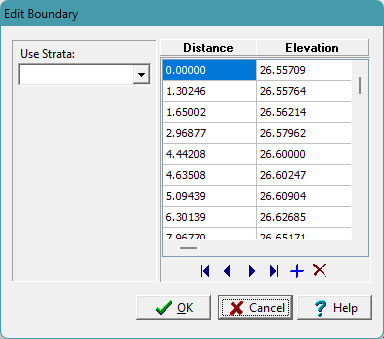
- On the Edit Boundary form the exact distance and elevation of each boundary point can be edited.
- If the strata contains multiple segments, addition segments can be added by positioning the cursor in the segments area and selecting Popup > Add. The additional segment will then be added to the list and can be edited as described above.
Summary
Editing in WinFence is a three-tier process: use Styles for visual aesthetics and Segments for geometric precision. By utilizing the Edit Points tool and the Snapping Toggle, you can resolve gaps and overlaps to create professional 2D cross-sections ready for 3D fence diagram display.
Related Articles
- Creating Fence Diagrams in WinFence: A Complete Guide to Subsurface Visualization
- Visualizing Stratigraphy Across Sites: A Complete Guide to Subsurface Correlation and Interpretation
- How Do I Use Project Views to Display Cross-Sections in GaeaSynergy?
- How Do I Create a Cross-Section in WinFence Using My WinLoG Data?
- How do I Print or Export a Cross-section to a PDF in WinFence?
- How do I Add Strata to a Cross-section in WinFence?
- How do I Edit and Snap Boundaries in WinFence?