

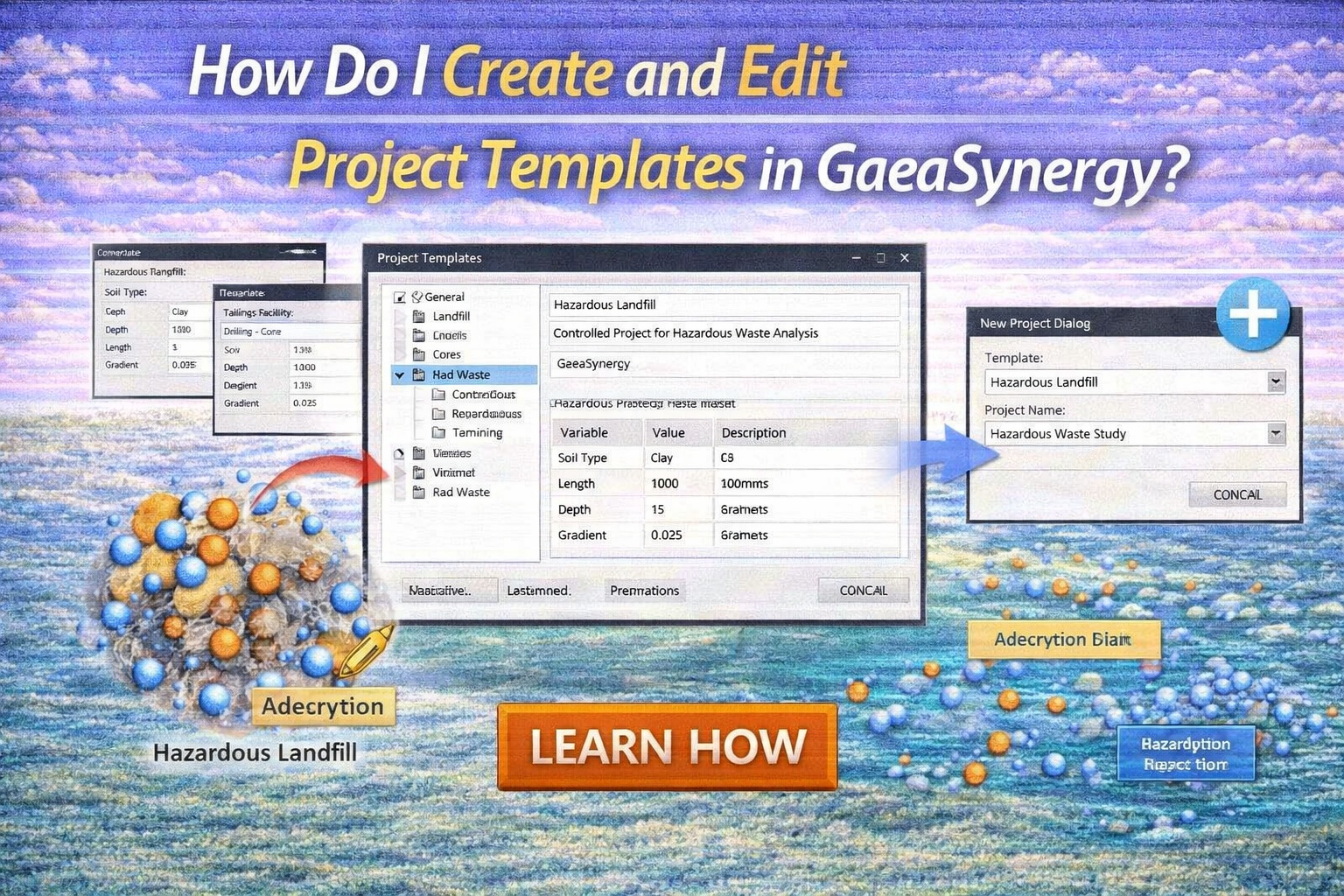
Managing environmental data efficiently requires consistency. Templates allow you to standardize your workflow, ensuring that every member of your team adheres to the same reporting standards while saving hours of manual setup.
Project Template are used to store common layouts for project views. These templates can be created and edited by the user. They specify the positions and display properties of data elements (objects) on the page. The templates do not show or store any of the actual data from the application. When a project view is created the data to be displayed will be determined by the template.
Creating a New Project Template
Project templates can either be created from scratch or an existing project template can be edited and saved as a new name. To create a project template from scratch make sure no project is opened and select File then New then Project Template. After this the New Project Template form will be displayed. Specify a unique name for the template and select the page layout.

Editing a Project Template
After a project template has been created or opened it can be edited. The page layout screen will contain a sidebar, main display area and several toolbars. On the sidebar the existing data elements on the template are displayed. Additional data elements can be added using the data element toolbar.
A wide variety of data elements can be added to the project template, including:

- Title Blocks
- Tables
- Graphs
- a Project Map
- Boreholes
- Cross-sections
- 3D Diagrams
- Contour Maps
Data elements can be added by clicking on the Add menu item of the data element button on the toolbar and then clicking on the position of the element on the template. For a detailed discussion on how to add and edit data elements consult the Projects Chapter of the GaeaSynergy User Guide.
Summary
Project Templates in GaeaSynergy serve as a blueprint for your environmental and geotechnical projects. By defining your data fields, report layouts, and measurement units in advance, you ensure high-quality, standardized output. You can create templates through the Project Manager and edit them via the Template Designer to adapt to evolving project requirements.